
From purchasing the device to wiping it, discover how to organize and manage every stage of your professional mobile devices’ lifecycle
Smartphones, tablets, rugged devices, scanners… Work mobile devices accompany employees in their daily tasks. But managing them goes beyond their initial purchase or setup. To ensure they function properly, it is essential to organize their lifecycle, from deployment to replacement or reassignment.
With a Mobile Device Management (MDM) solution, IT teams can centralize these different stages and tailor devices to the company’s needs.
1. Choosing and purchasing mobile devices
A device’s lifecycle begins before deployment, during hardware selection. This choice must consider work requirements, operating environments, and the management features the company will need.
A smartphone may be ideal for a traveling sales representative, while a rugged device is better suited for environments exposed to drops, dust, or moisture. It is also important to verify the device’s Android version and its compatibility with Android Enterprise.
TinyMDM partners with several mobile device manufacturers, such as Samsung, Zebra, Crosscall, Lenovo, Motorola, etc. Manufacturer selection can thus rely on devices tailored to various business needs.
Companies can also plan ahead for enrollment methods. Certain devices can be pre-deployed using solutions like Zero-touch Enrollment (ZTE) or Knox Mobile Enrollment (KME) for Samsung devices, provided the prerequisites for these services are met.
2. Preparing devices in the administration console
Administrators start by selecting the applications that will be allowed in the organization. These can include public Play Store apps, private enterprise apps, or web apps. They then define policies to enforce rules on the devices: allowed settings, usage restrictions, passwords, and other security measures.
It is also possible to prepare useful resources for employees, such as shared files or contacts, ensuring they are immediately available on the target devices.
This preparation saves time during deployment and minimizes manual setup once devices reach end users.
3. Enrollment: Connecting devices to TinyMDM
Once setup is complete, devices must be enrolled into TinyMDM. Enrollment allows administrators to apply configurations and manage devices directly from the console.
TinyMDM offers multiple enrollment methods depending on the device type, ownership model, and required management mode. Options include scanning a QR code for individual enrollment, multiple enrollment, or automated enrollment via ZTE and KME. BYOD has its own dedicated workflow, establishing a separate work profile on personal devices.
The management mode is selected based on the intended use case:
- Fully Managed (COBO): The device is company-owned and dedicated solely to work use.
- Kiosk mode (COSU): The device is locked down to one or specific applications for a dedicated purpose.
- WPCO: The device is company-owned, but personal use is allowed.
- BYOD: The device is employee-owned, and an isolated work profile is created for work-related activities.
Once enrolled, the device is managed under the Android Enterprise framework.
4. Daily management: Monitoring and updating devices
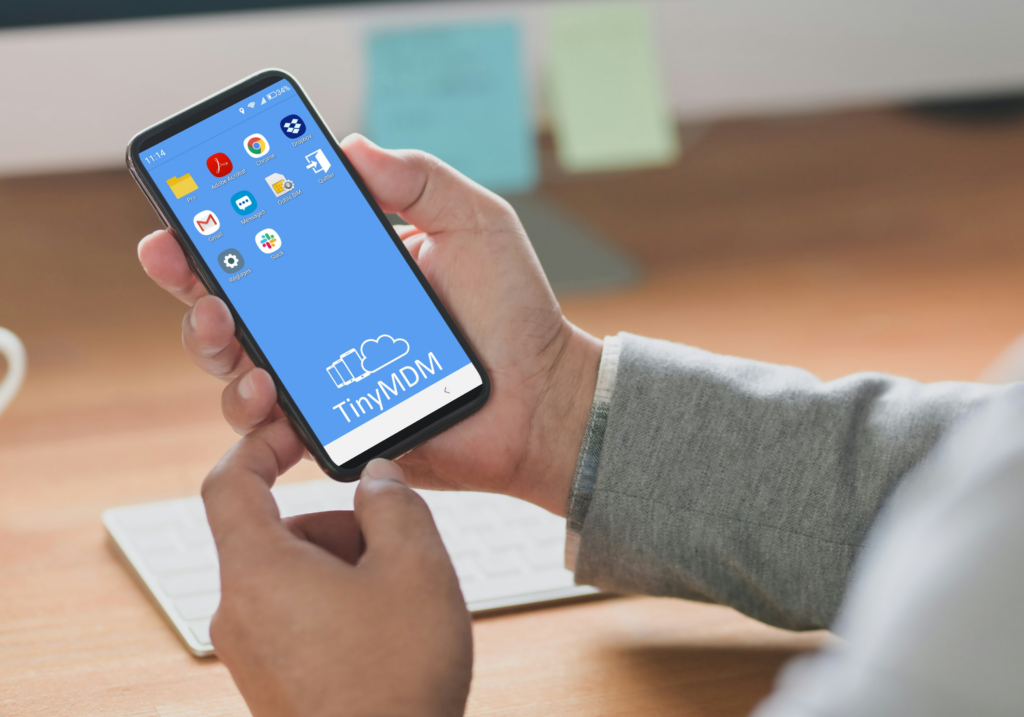
From the TinyMDM console, IT teams can continuously adapt devices to changing business needs. They can add or remove applications, deploy app updates, modify policies, and more.
Usage needs may also evolve over time. For example, a device initially configured in kiosk mode for a specific task might require a full workstation environment if the employee’s responsibilities change.
Android OS updates
Android updates deliver essential security patches and, depending on the version, new system features.
Upgrading to a newer Android version can unlock additional capabilities. For instance, certain management features offered by TinyMDM rely on specific Android OS versions. It is therefore recommended to monitor system versions and schedule OS updates strategically.
Remote support when needed
Devices may encounter configuration issues or require technical assistance during regular use. Remote control allows IT support to view screen activity and interact with the device to streamline troubleshooting.
This feature reduces the need for physical interventions and significantly speeds up resolution times.
5. Wiping: Preparing for the end of a cycle
Over time, a device may suffer critical software issues, reach end-of-life, or need reassignment to a new team member. In such cases, performing a factory reset or remote wipe ensures a clean slate.
For a fully managed device, wiping it removes it properly from the managed environment. This action erases all data stored on the device prior to its next assignment.
After a reset, the device can be reconfigured and enrolled for another user or use case. Wiping a device also frees up its TinyMDM license, making it available for redeployment.
Conclusion: A lifecycle ready to restart with TinyMDM
A mobile device’s lifecycle doesn’t end after initial deployment. From procurement to retirement, every phase helps maintain a secure, optimized mobile environment that meets both employee and business requirements.
With TinyMDM, an Android MDM solution, IT teams can centralize setup, enrollment, management, and monitoring throughout the device lifecycle. When a device is wiped, it can easily be re-enrolled for another user, and its TinyMDM license can be reused.