
How can I transfer a device from a user to another?
Transfer delay: Please note that the process of transferring a device to another user may take up to 24 hours. This delay is due to the need to delete and recreate the “managed” Google account present on the device since the initial enrollment. This process is entirely managed by Google services and is not controlled by TinyMDM.
Tip for changing the user: If you only need to change the user of a device, we recommend renaming the user in the TinyMDM dashboard instead of performing a full transfer. This simplifies the process and keeps the device operational without delay.
A. Transfer devices to the same account 

Regardless of the method you chose to enroll your devices in TinyMDM, they are all linked to a user. Most of the time, if you want to change the configuration of a device, you simply need to change the group or the policy linked to the device. But you may need to transfer a device from one user to another if multiple devices have been mistakenly enrolled under the same user for example. In this case:
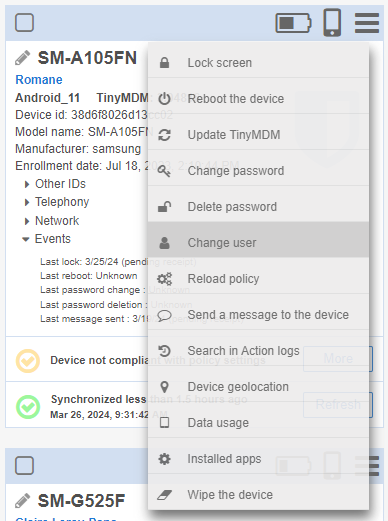
- Go to the Devices tab to transfer a device to another user on the same account. Then, click on the menu
 of the device you wish to transfer and select Change user.
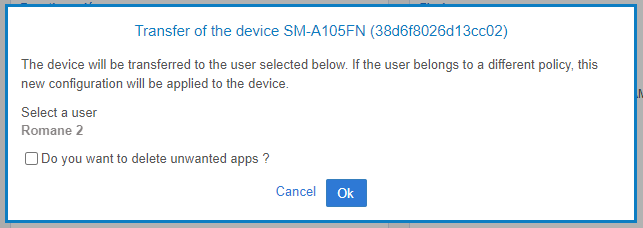
- In the popup window that appears, you can choose the user to transfer the device to. This popup window also allows you to delete unwanted apps. These are applications that are present in the device’s original policy but are not present in the new policy.
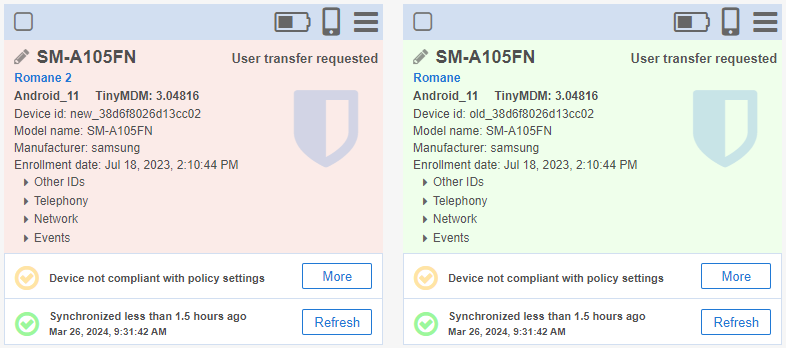
- During transfer, the green card represents the active user who was initially associated with the device, while the red card represents the device currently being transferred with the user who has just been selected.
B. Transfer devices to another account
If you are a manager on several accounts and you have the right to change users, then you can transfer a device to another account. To do this:
- Start by logging into the admin console where the device will be transferred. Next, ensure you have an available user (one who is not already linked to a device). If not, go to the Users and Groups tab and create a new user by clicking Add user. Then, assign this user to the desired policy.
- Next, go to the admin console where the device is currently located. Go to the Devices tab, click the menu of the device you wish to transfer, and select Change user.
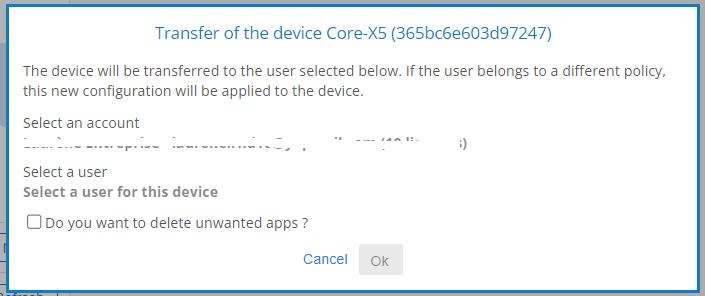
- In the popup window that appears, you can select the TinyMDM account and user to transfer the device to. You can also deleted unwanted apps by checking the corresponding box. These are applications that are present in the device’s original policy but are not present in the new policy.
Please note several important points:
- If the target user belongs to a different policy, the device will apply the new configuration. The change will be immediate on the TinyMDM console, but may take several minutes to run on the device in question.
- The target account must have a valid TinyMDM subscription and enough free licenses to host the device.
- The target user must not be linked to any other device. If it is linked to a device, it will not be visible in the list.
- The manager who performs the transfer must have the corresponding permission in both the source and target accounts.
- The manager who performs the transfer must have access to the target user’s group, in accordance with his/her membership of the Structure. Otherwise, the user will not be visible in the list.