
How to set up a SAML configuration?
A. Create the SAML configuration 
Prerequisite: be a TinyMDM account administrator and own a domain name.
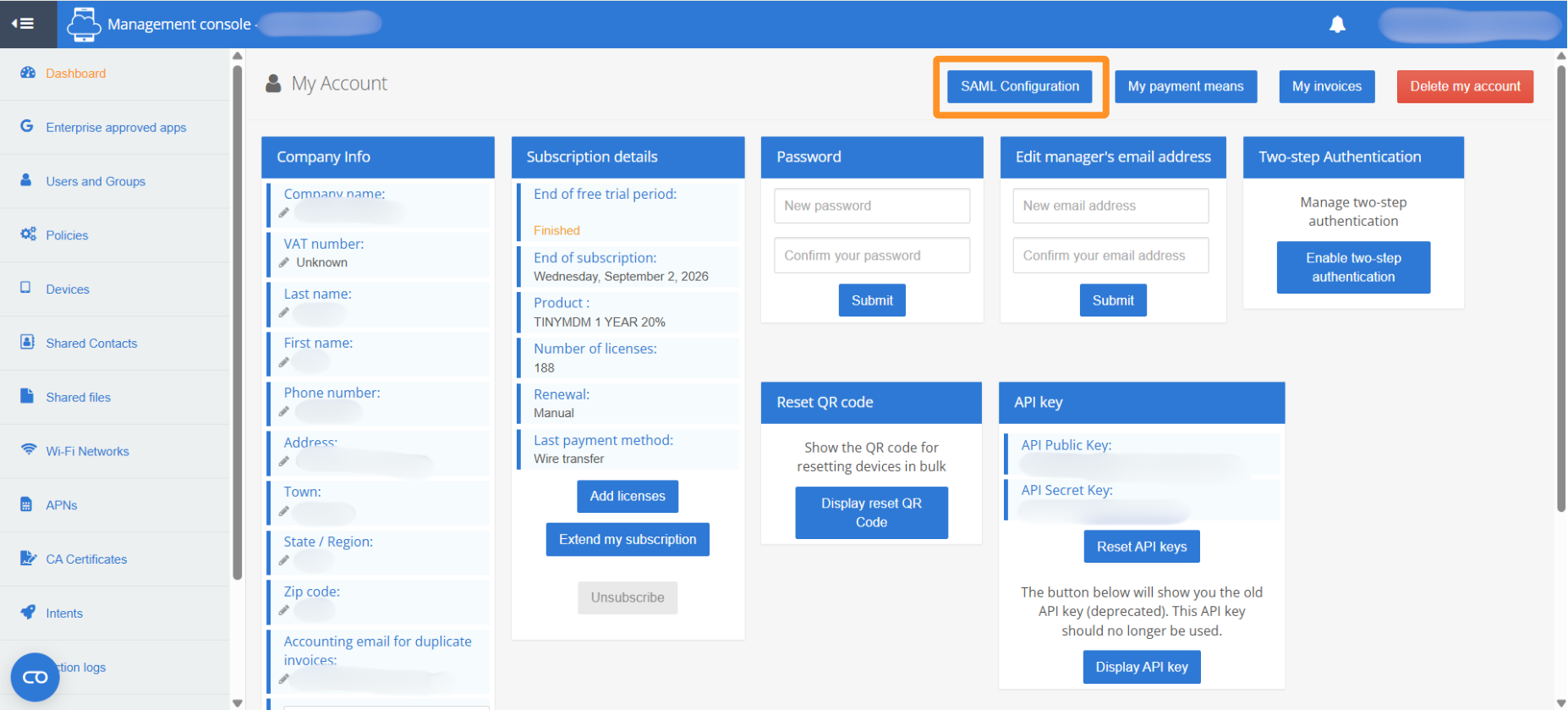
- Connect to your TinyMDM account and open My account tab.
- Then click on SAML Configuration.
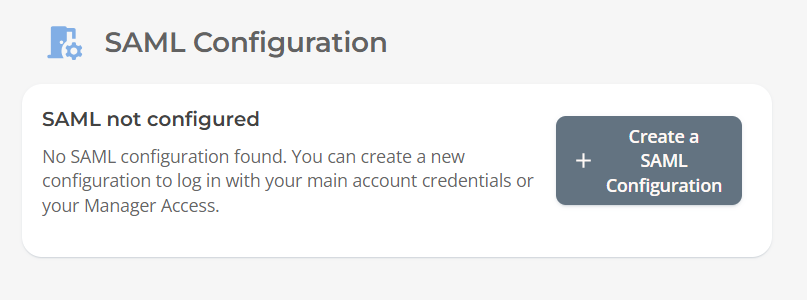
- On the page that opens, click on Create a SAML configuration.
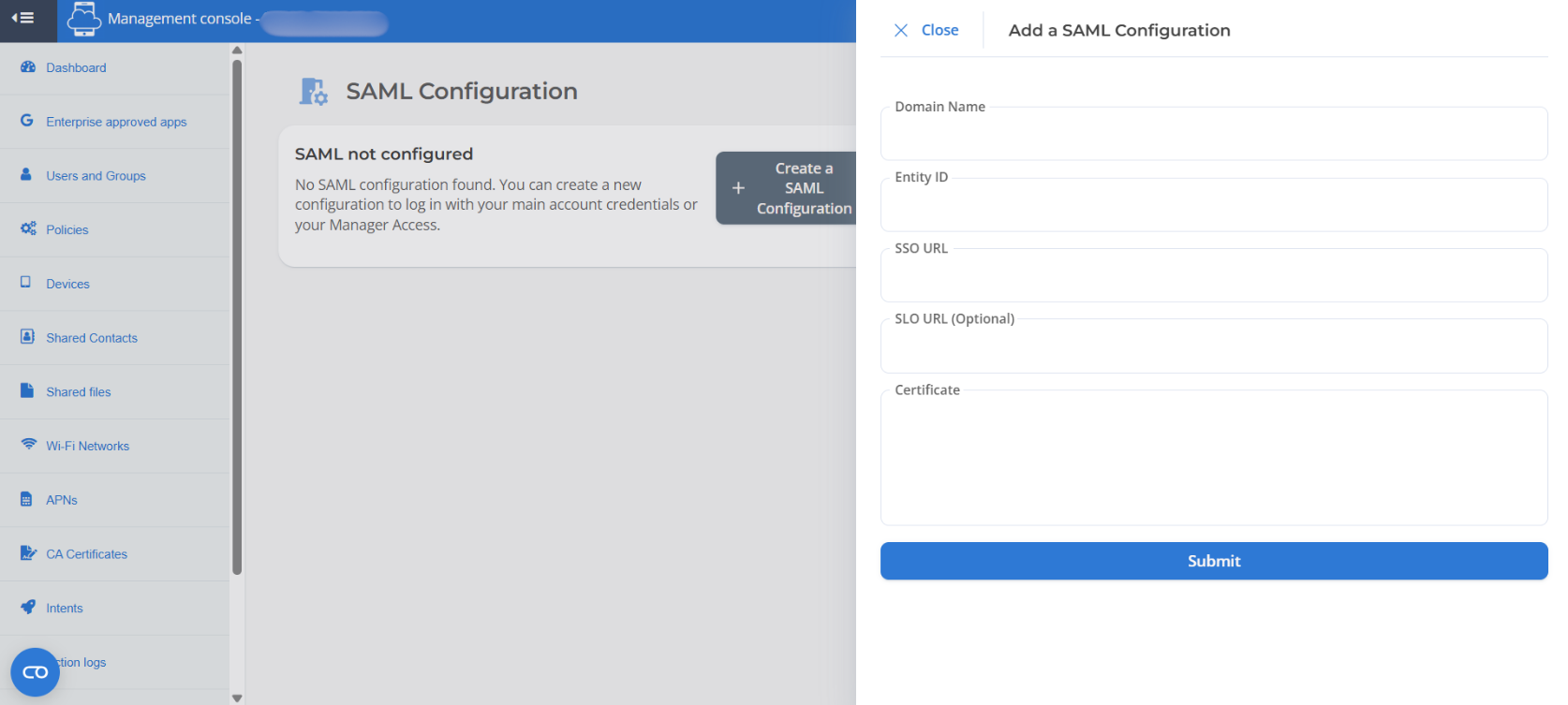
- Next, fill in your Domain Name. Regarding the following details: Entity ID, SSO URL, and Certificate, you must retrieve these directly from your SAML provider.
For example, for Google Workspace, you can find this information here. For Okta, you can find this information here.
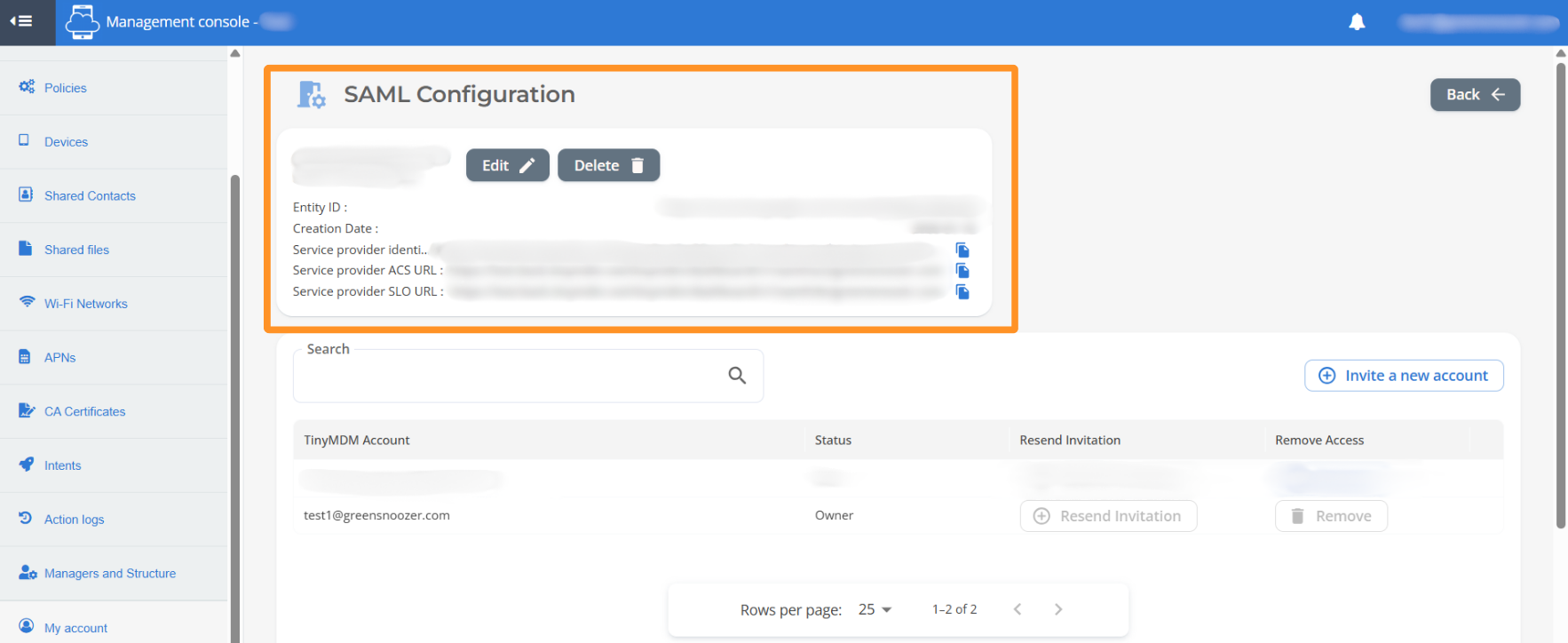
- Once all the info has been entered, click Confirm. Your SAML configuration will then appear on TinyMDM.
- You must then return to your SAML provider’s website and enter the information displayed in your TinyMDM SAML configuration to confirm the setup.
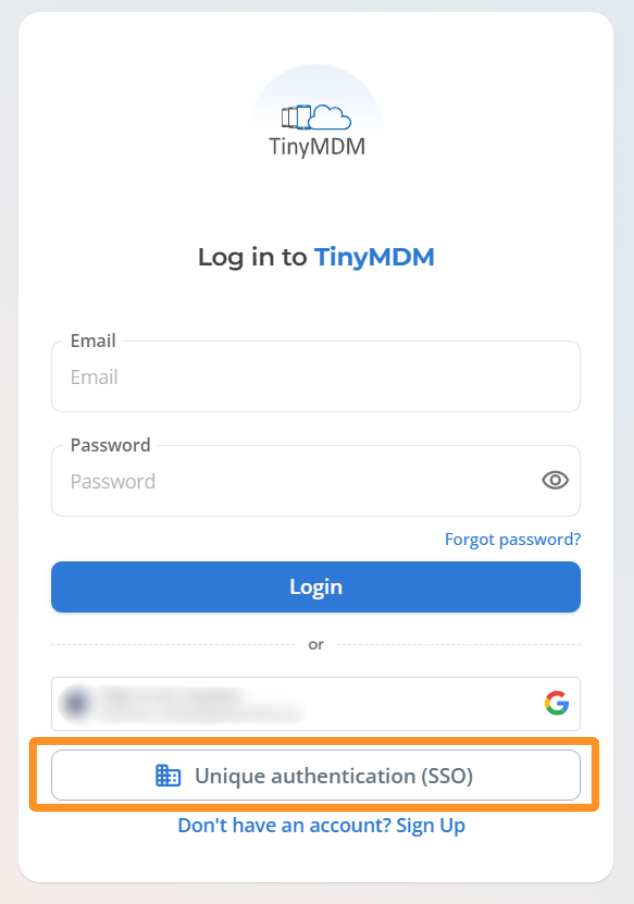
- Once the SAML configuration is complete, you can log in to your TinyMDM account by clicking on Unique authentication (SSO) without entering a password.
B. Invite another TinyMDM account administrator to your SAML configuration
- Connect to your TinyMDM account and open the My account tab.
- Click on SAML Configuration to open the existing configuration.
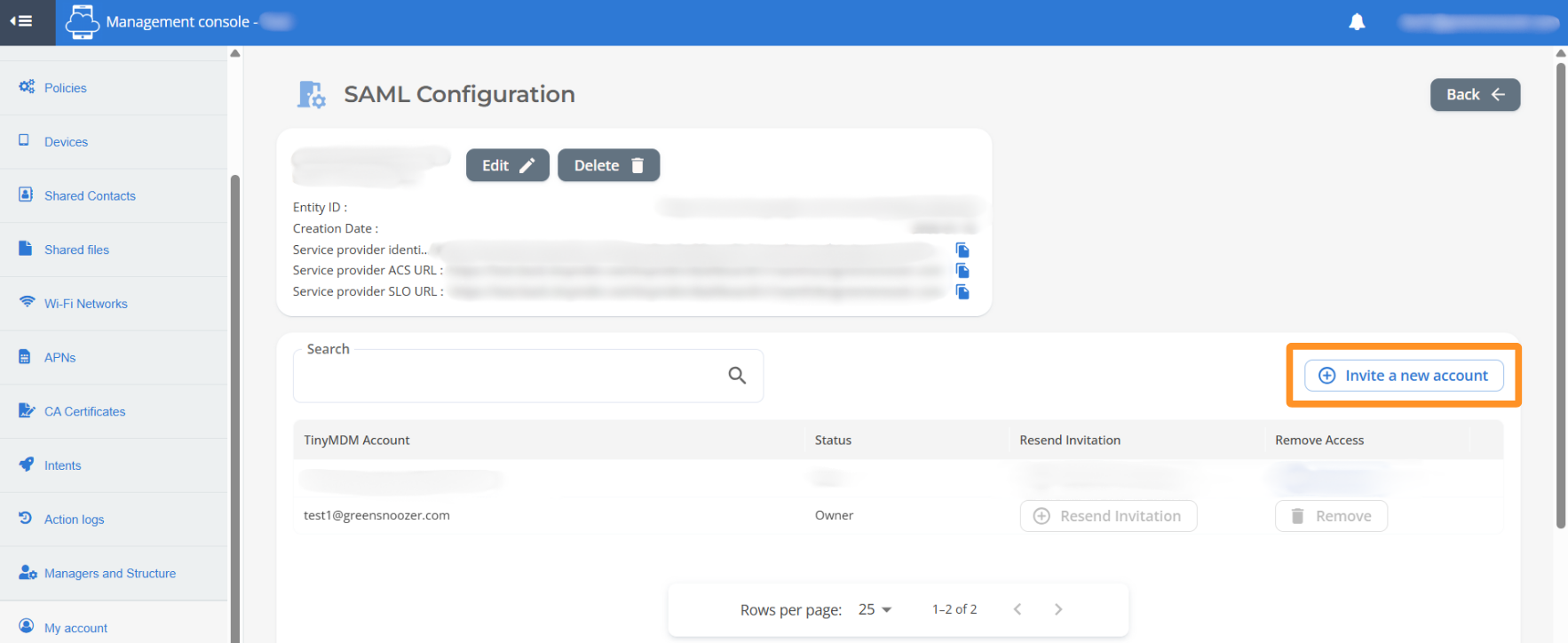
- Click on Invit a new account.
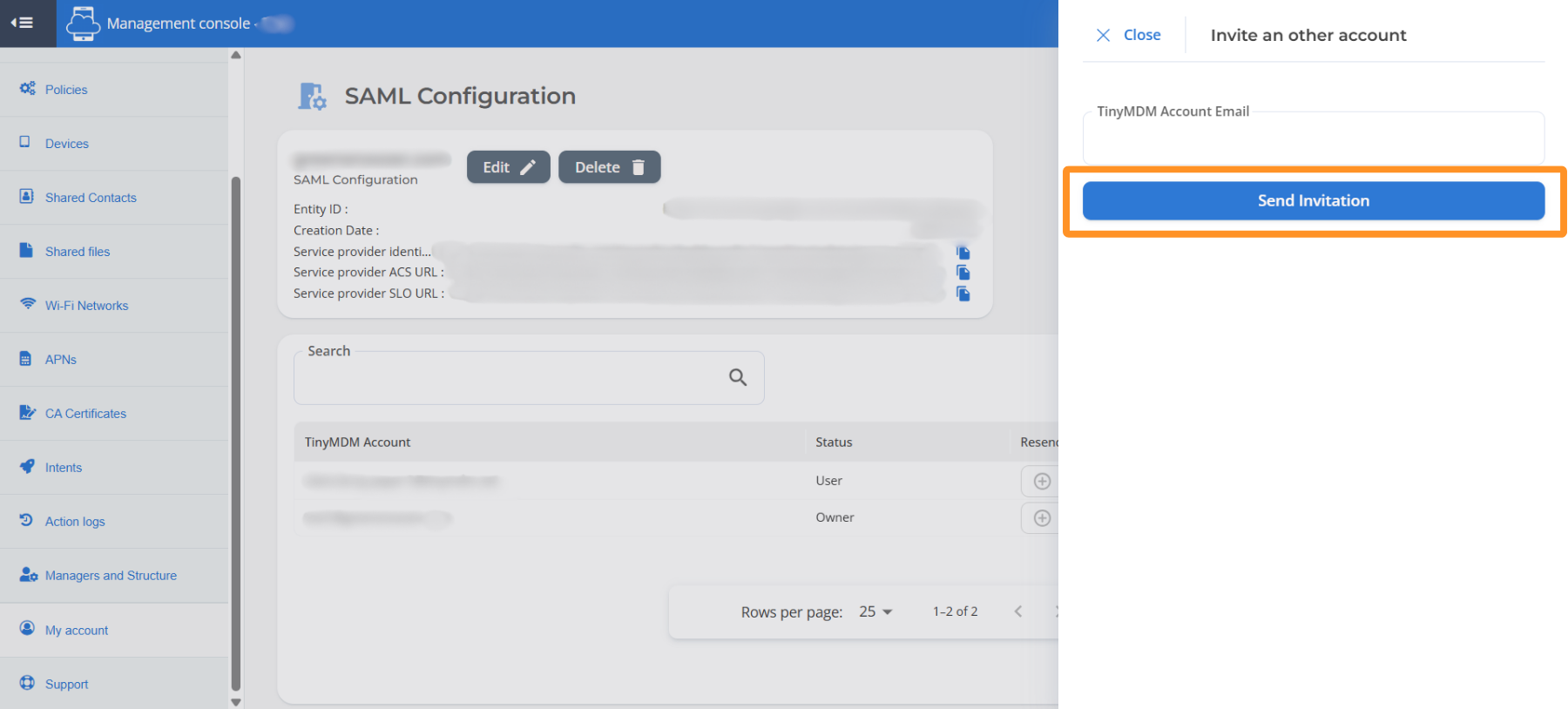
- Enter the email address of the TinyMDM account you wish to add to your SAML configuration, then click Send invitation.
Important: only existing TinyMDM accounts can be invited. If the TinyMDM account has not been created yet, the administrator must create if beforehand.
- The invited TinyMDM account administrator will then receive an email containing a login link. By clicking the link, they will be directed to the TinyMDM login page and must enter their usual username and password. Once logged into their TinyMDM account as an administrator, they must click on Accept Invitation to the SAML configuration.
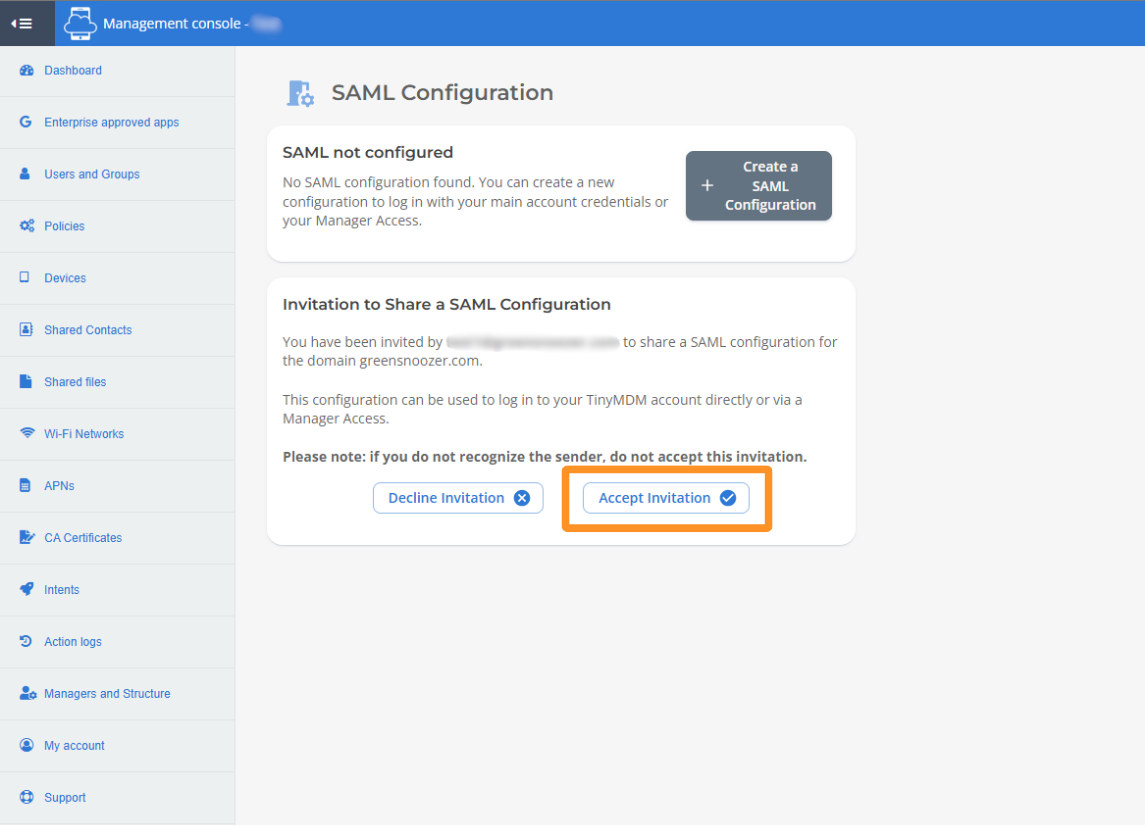
- By accepting, they will be able to see the SAML configuration, as well as the account owner of the configuration and the associated user accounts.
- The next time they log in, they will be able to access their TinyMDM account via SSO authentication, without entering a password.
C. Configure the SAML connexion for TinyMDM managers
Prerequisites:
- To create a manager who will log in via the SAML configuration, you must be a member of the SAML configuration, either as the owner or as a user.
- To create a manager who will log in via the SAML configuration, their email address must use the same domain name as the one defined in the SAML configuration.
- Log in to your TinyMDM admin console and go to the Managers and Structure tab.
- If the manager already exists in the TinyMDM account, follow Step 1 below. If they have not been created yet, follow Step 2 below.
1. Existing manager
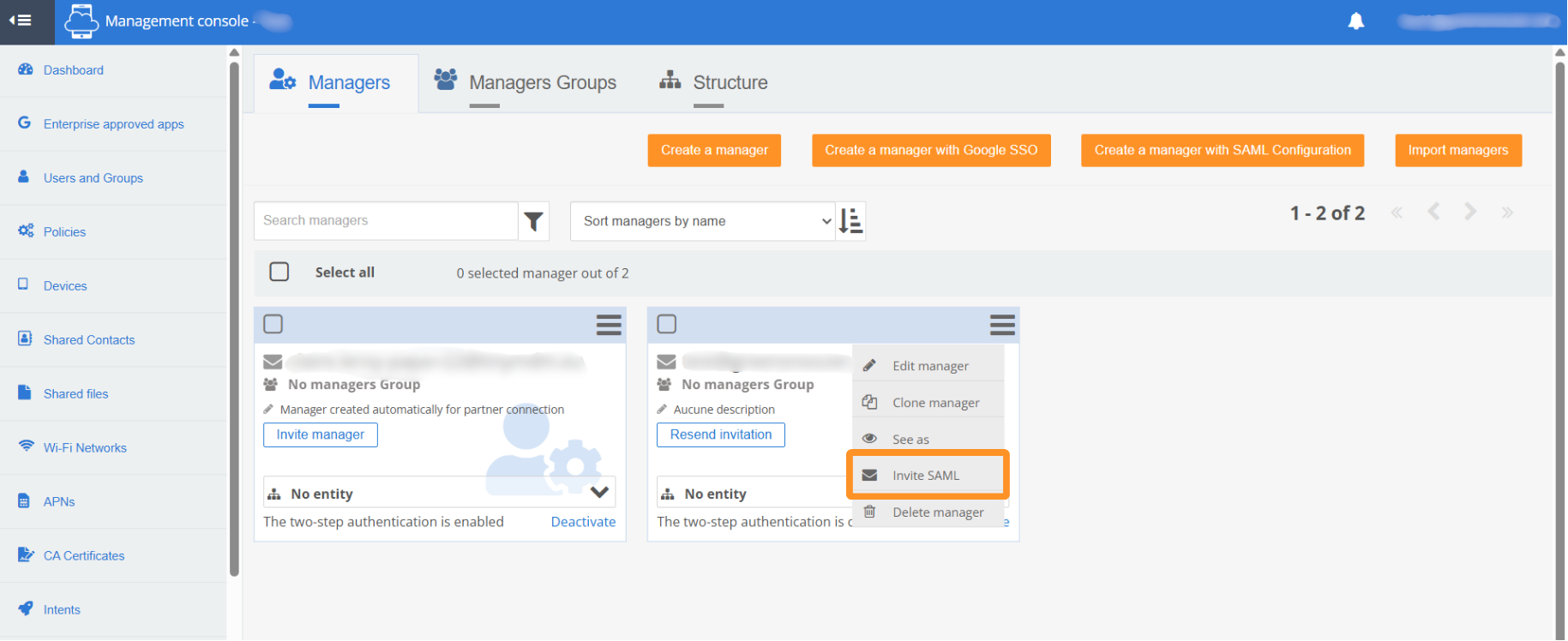
- On the manager’s file, click the menu in the top-right corner and select Invit SAML.
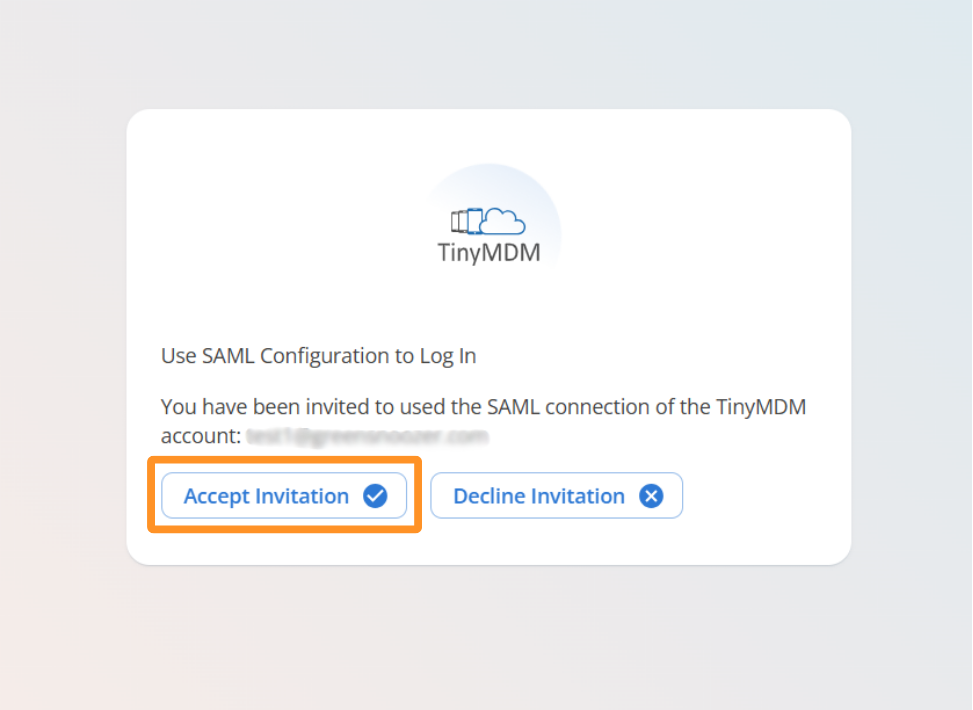
- The manager will then receive an email containing an invitation link. They must click the link and select Accept Invitation.
- The next time they log in, the manager will be able to access their TinyMDM account by clicking on Unique authentication (SSO).
2. Non-existing manager
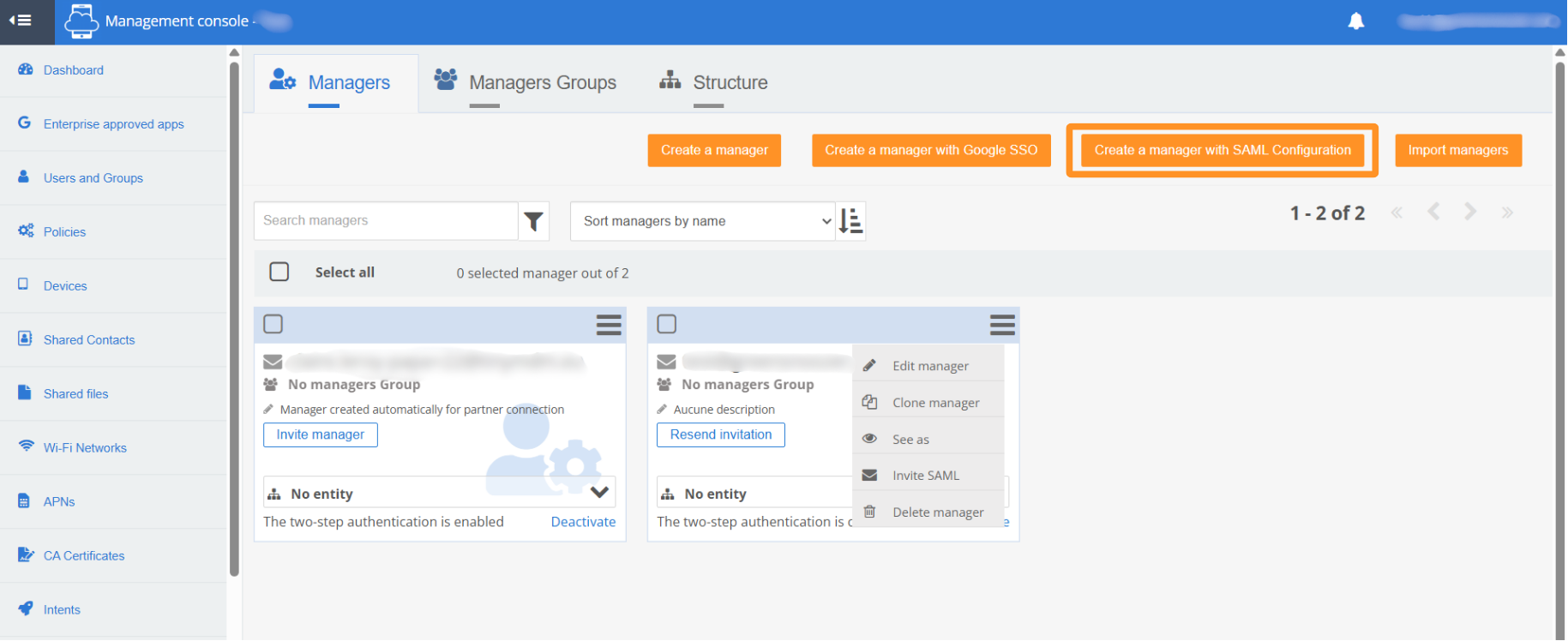
- If you want to configure SAML login for a manager who has not been created yet, you must click on Create a manager with SAML Configuration.
- They will be able to access their TinyMDM account by clicking on Unique authentication (SSO).