
How to prevent the factory reset of all data on a device?
A factory reset can be useful in the following cases:
- If you need to delete a device. For example, if one of your devices is obsolete and needs to be replaced by another, you must factory reset it from the console to free up its license so you can enroll a new device. For devices enrolled with a work profile, please see this tutorial.
- In the event a device is lost or stolen, you can use the factory reset to remotely wipe all confidential data from the device so that it does not fall into the hands of a malicious person.
To prevent the factory reset of devices (the act of deleting all data on the device and restoring it to its factory settings), log in to your TinyMDM administration console:
- Then navigate to the Policies tab
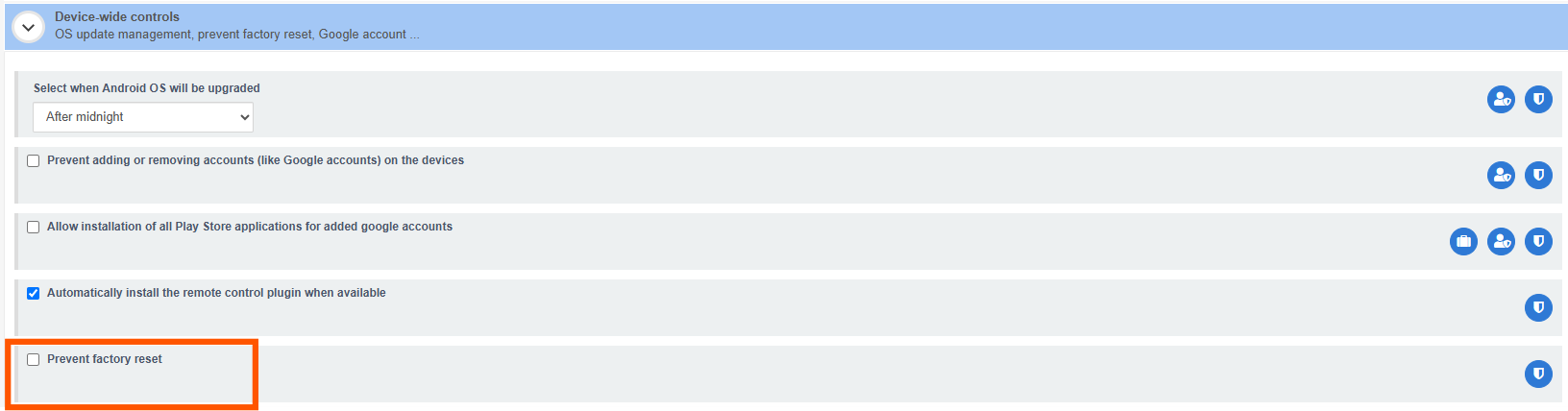
- Scroll down the policy until you reach the Device-wide controls menu
- Check the Prevent factory reset box
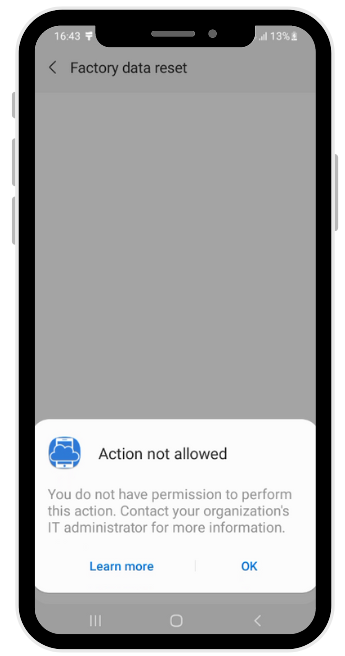
Users will then no longer be able to perform a factory reset from their device settings. If they try, an Action not allowed pop-up will then appear on the screen.
For info, on some devices, the reset via physical buttons is also blocked by this option. This is not the case on Samsung devices, where you must check the option Prevent factory reset via physical buttons on Samsung devices, which is visible in the feature’s advanced management.
Please note that in the event of a device malfunction, if all reset options are blocked, the factory reset will only be possible by sending the device to the manufacturer.