How to manage password manager apps?
An organization that equips its teams with professional mobile devices can use TinyMDM to select password management apps capable of automatically saving and entering passwords, regardless of the management mode chosen.
To configure password manager settings:
- Go to the Policies tab in your administration console
- Open the Apps management sub-tab
- Click Advanced apps management
- Scroll down to the last section titled: “Block or allow password manager applications to automatically save and autofill login credentials (Android 14+)“
A. Do not manage the automatic saving and entry of the password manager 

The “Not managed by TinyMDM” option is enabled by default in policies.
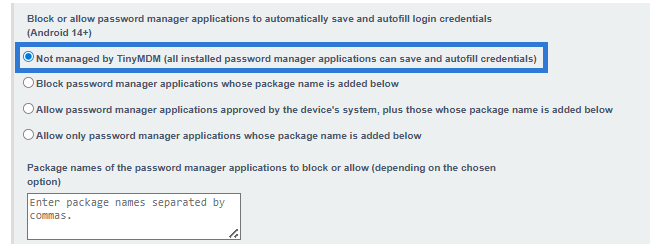
When this option is selected, no specific rules are applied: no password managers are blocked or explicitly allowed. End users can therefore freely use the password managers installed on their devices, without restriction.
B. Block access to one or more password managers
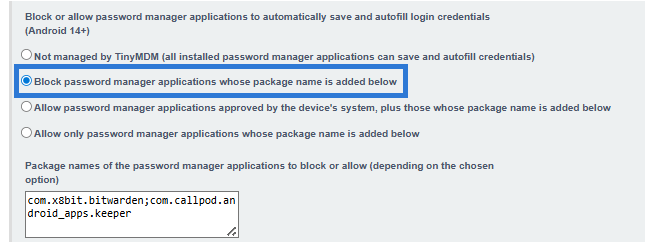
By selecting “Block password manager applications whose package name is added below“, the IT administrator can enter one or more package names in the field provided to prevent users from using them.
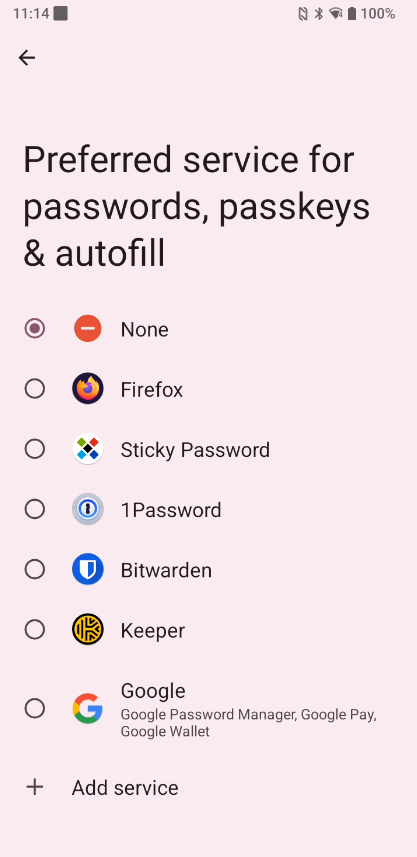
Therefore, when the user accesses the password managers in their device settings, the blocked ones appear grayed out and cannot be selected.
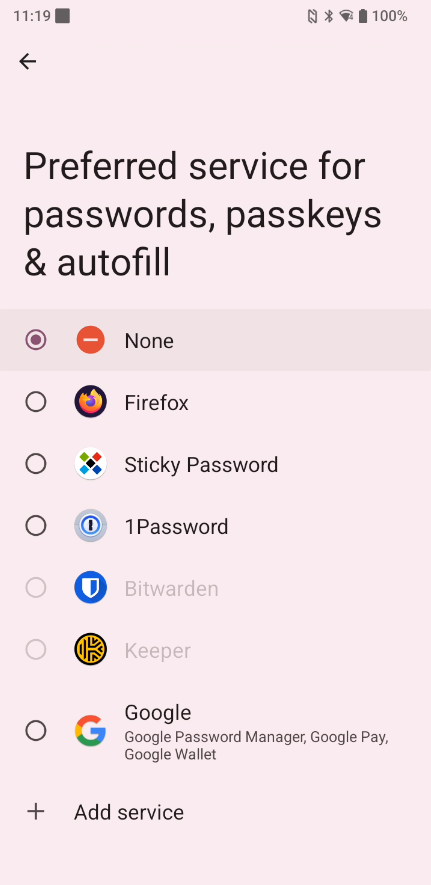
Please note: If a password manager has been previously installed on the device and is subsequently blocked via the TinyMDM administration console, access to it is automatically revoked. The user will then no longer be able to use it.
C. Allow access to one or more password managers
To allow access to password managers, there are two options:
- Allow password manager applications approved by the device’s system, plus those whose package name is added below. In this case, the built-in password managers approved by the operating system (those from the manufacturer) will remain usable. You can also add other apps via their package names to authorize them as well.
- Allow only password manager applications whose package name is added below. In this case, only the password managers you have specified are authorized. All others, including those built into the system, are unavailable.
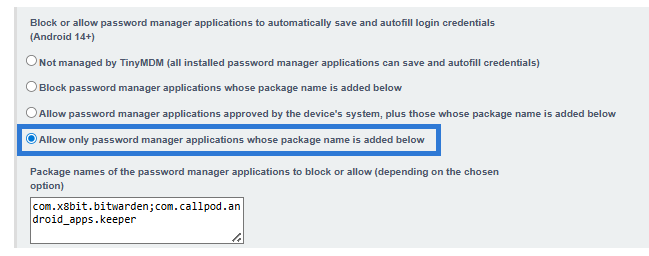
Let’s take Bitwarden as an example: to enable this password manager, the user must select it. A message then appears:
“Change your preferred service to Bitwarden? New passwords, passkeys, and other info will be saved here from now on. Bitwarden may use what’s on your screen to determine what can be autofilled.”
In this window, the user must click Change.
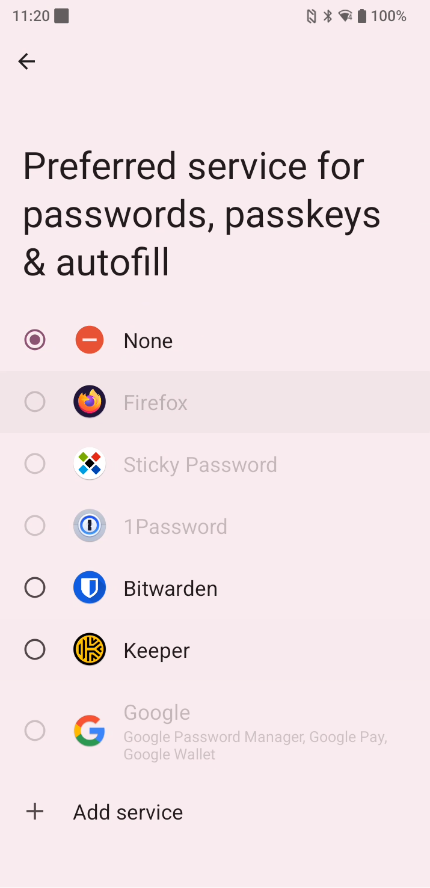
In both cases, only authorized password managers appear as available in the settings and can be selected by the user.
D. Set up automatic password filling
Next, depending on the browser being used, the user must follow these steps to enable password autofill.
From the device settings
Step 1
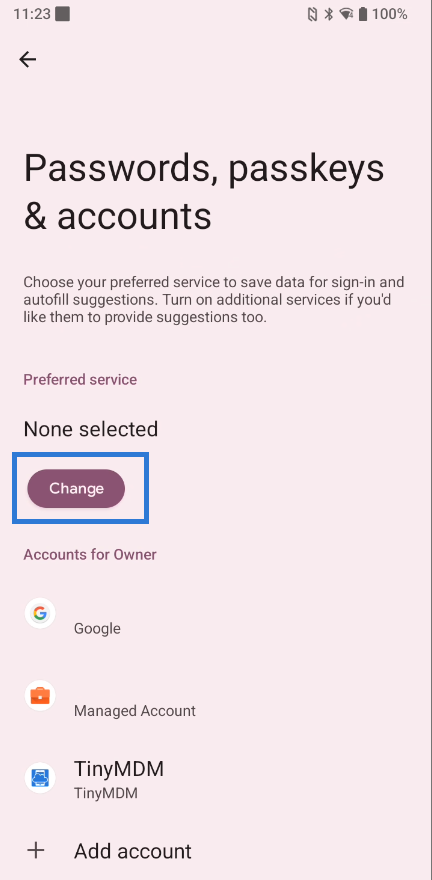
In Settings, click Passwords, passkeys & accounts.
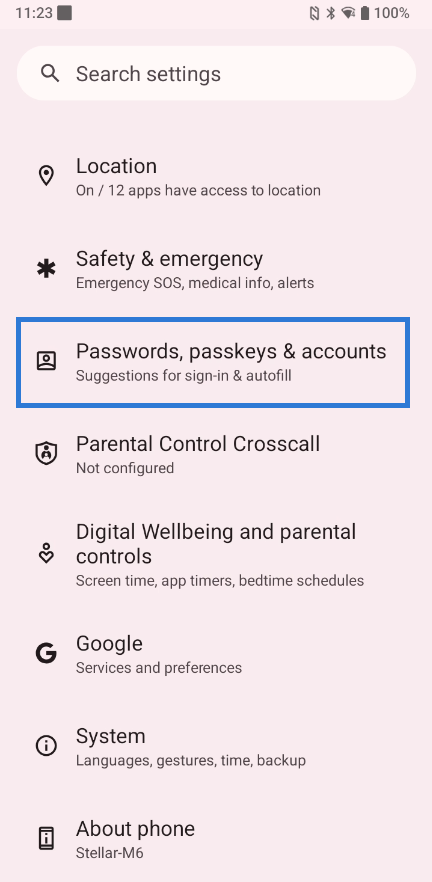
Step 2
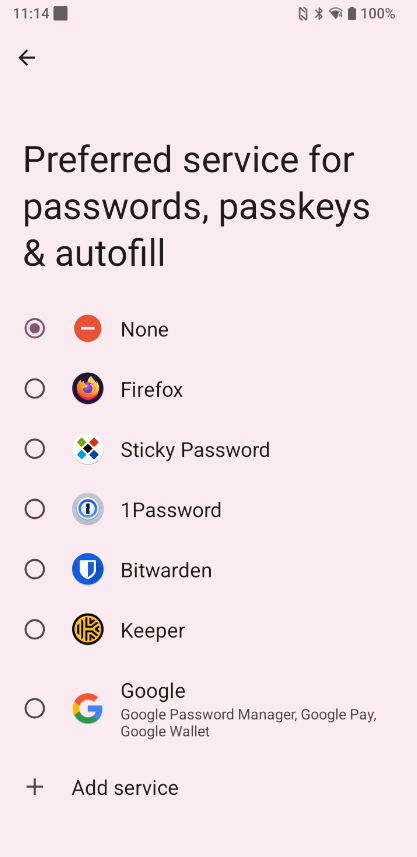
Click Change to view the available password managers.
Step 3
Select the password manager you want to use.
From your web browser (Chrome, Internet etc.)
Step 4
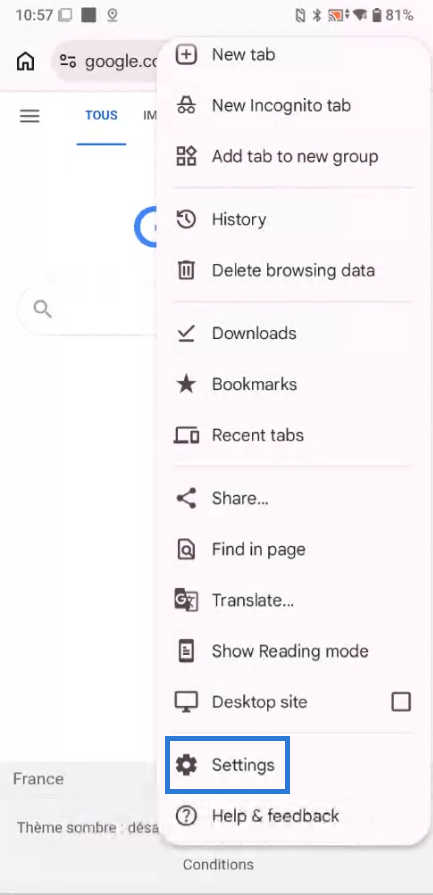
Open the browser menu, then go to Settings.
Step 5
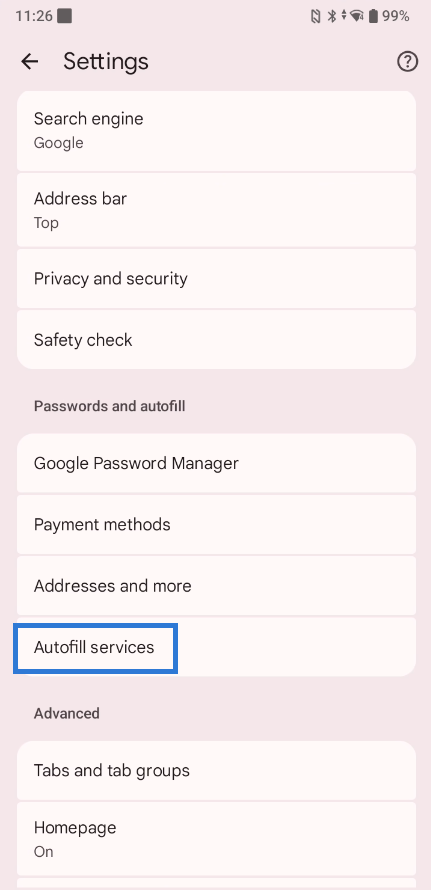
Click Autofill services.
Step 6
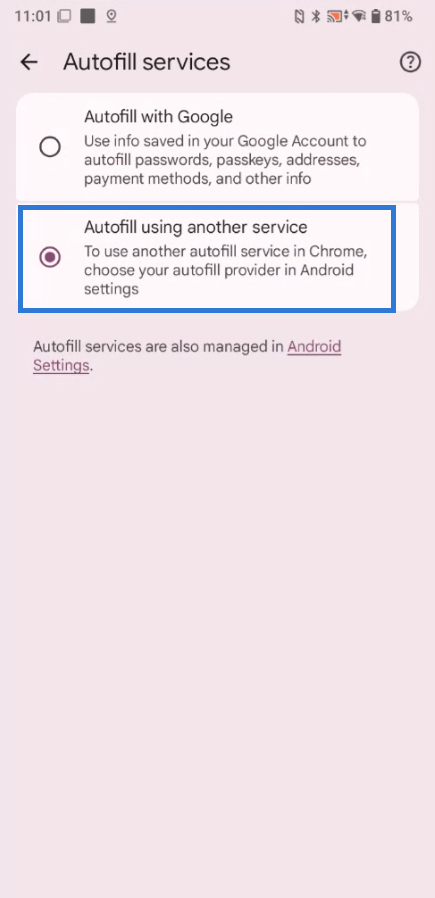
Select Autofill using another service to complete the setup.