
How to Import Non-Nominal (Anonymous) Users via a CSV File
1. Preparing Your CSV File
To create a CSV file using Google Sheets or Excel, open a new file and enter your anonymous users’ information. The file structure must strictly follow this format:
<user_name>;<user_email>;<group_name>;<directory_name>;<is_anonymous>;<send_email>;<email_wpco_qr_code>;<custom_field_1>;<custom_field_2>;<custom_field_3>
- user_name: corresponds to the name you want to associate with the device.
- user_email: corresponds to the email address of the device’s end user. Since you want to create an anonymous user, leave this cell empty.
- group_name: corresponds to the name of the group the end user will belong to. If you do not want to associate the anonymous user with a group, leave this cell empty.
- internal_alias: corresponds to the user’s internal alias within the company directory. This can be useful for managed configurations in certain applications.
- anonymous: identifies whether the user is anonymous or not. Since you want to create an anonymous user, enter 1 in this cell.
- send_email: applies only to non-anonymous users. Since you want to create an anonymous user, enter 0 in this cell.
- send_special_WPCO_email: applies only to non-anonymous users. Since you want to create an anonymous user, enter 0 in this cell.
- custom_field_1, 2, and 3: allows you to create additional custom fields on the user’s profile. If you want to leave one or all three custom fields blank, leave the corresponding cell(s) empty

Each row must contain exactly 10 cells, and each row corresponds to one user. If you do not wish to fill in all the fields, leave the respective cell blank. For example, if you do not want to provide custom fields for the user on row 2, leave cells 2H, 2I, and 2J empty.
Once the file is complete, click on File > Download > Comma Separated Values (.csv).
B. Importing the CSV file
To import your CSV file into the TinyMDM administration console:
- Log into your TinyMDM account.
- Go to the Users and Groups tab, then click on Import users..
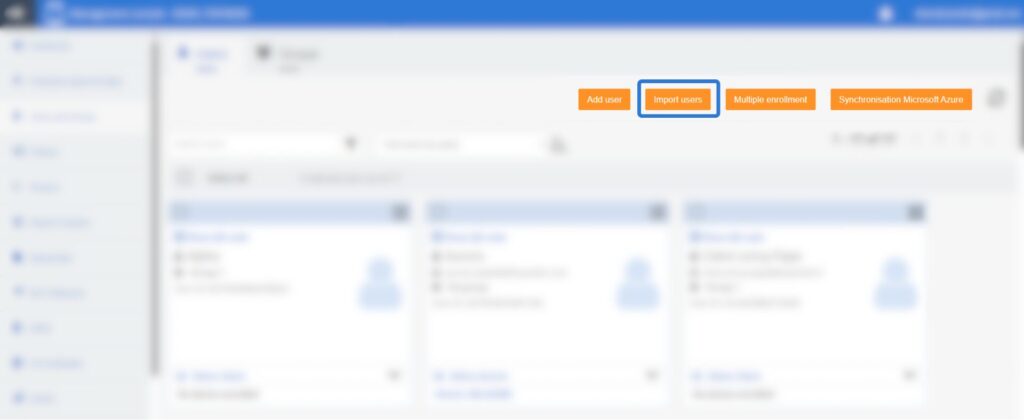
On the pop-up that appears, click on Browse files, select your CSV file, and click Ok to confirm the import:
- If the import is successful, the anonymous users will appear in your user list.
- If the import fails, an error message will pop up to indicate exactly what went wrong. To review the most common errors, please go to Section C.
C. Common errors encountered
Here is an example of a pop-up showing an error during the CSV file upload:
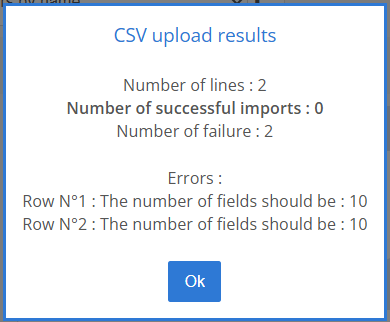
In this example, the imported CSV file triggers an error because the two lines in the file do not have the correct number of cells. You must ensure that every row has exactly 10 cells.
Below are other examples of frequently encountered errors:
- Number of fields: if you see the error “Line N°X: The number of fields must be: 10” in the pop-up, it means the total number of fields on that line in your file is incorrect.
- Name required: if you see the error “Line N°X: name required for anonymous users” in the pop-up, make sure that the username field is not empty.
- Duplicate users: if you see the error “Line N°X duplicate user: XXXX” in the pop-up, it means this user already exists in your administration dashboard.