
How to get devices out of the kiosk mode and how to restore it?
A. To disable the kiosk mode on all the devices of a policy 

From TinyMDM only (internet connection required)
If you have multiple devices under the same policy and would like to remove all of them from kiosk mode at the same time, you can do so by following the steps below:
- Open your admin console and go to the Policies tab.
- Click the Edit button for the policy you wish to update.
- Scroll down the policy to the Apps management sub-tab, then simply uncheck the Enable kiosk mode box.
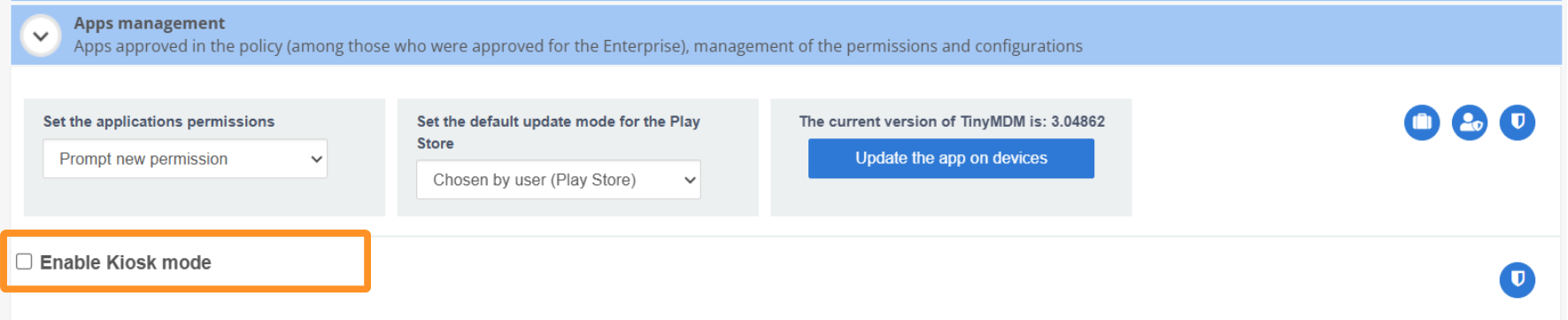
All devices under this policy will therefore exit kiosk mode and switch to fully managed mode. This means they will have access to the Play Store and settings, while still maintaining the restrictions applied within the policy.
B. To disable the kiosk mode on a device
1. From TinyMDM (internet connection required)
From your admin console, make sure the policy in which your device is, is in kiosk mode. And then:
- Go to the Devices tab
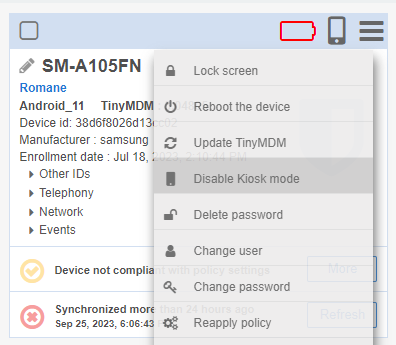
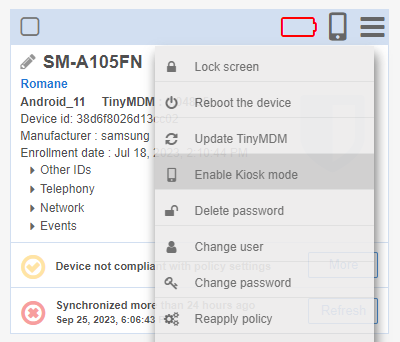
- On the device’s card, click on the icon
 and select Disable Kiosk mode
The device will therefore exit kiosk mode and switch to fully managed mode. This means the user will have access to the Play Store and settings, while still maintaining the restrictions applied within its policy.
2. From the device itself
If you have multiple devices under the same policy and wish to remove only one of them from kiosk mode, there are two solutions available to you:
- Approve the Exit kiosk built-in application directly from the Policy approved apps for lock task mode by clicking on it. The name of the application will turn from red to green and it will automatically be visible on all the devices of the policy.
- In the advanced lock task mode settings, activate the Shake and quit option by checking the box. Once the box is ticked, the user can strongly shake their device and then a pop-up will appear.
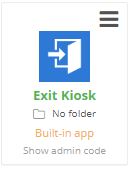
No matter the chosen option, the pop-up will be the same: Exit the Kiosk mode and will work even with no Internet connection. The administrator can generate the admin code from the administration console, next to the button to Enable Kiosk mode: Show admin code.
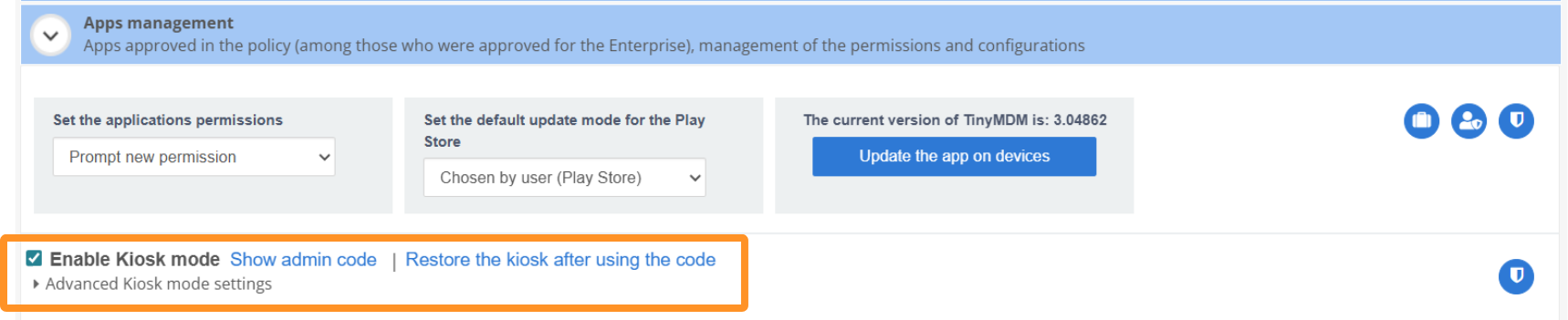

Once the password (admin code) has been entered on the device, it will switch to fully managed mode. This means it will have access to the Play Store and device settings, while still maintaining the restrictions applied within the policy.
C. Restore the kiosk mode
1. From the TinyMDM dashboard (internet connection required)
These are the solutions to restore the kiosk mode on one device at a time. You can do that either from the policies tab:
- On the administration console, go to the Policies tab
- Click on Modify to update the policy in which the device is
- Under Apps management, next to “Enable Kiosk mode”, click on Restore the kiosk after using the code
Or from the Devices tab:
- On the administration console, go to the Devices tab
- On the device’s card, click on the icon
- Select Enable Kiosk mode
2. From the device itself
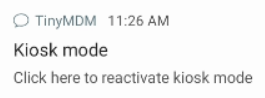
After exiting the kiosk mode, the device is in fully managed mode so the notification bar is accessible. The user can scroll down this bar to see the TinyMDM permanent message called Kiosk mode. They simply have to click on it to reactivate the kiosk mode on their device.
Also, if the device reboots and the kiosk mode is enabled on its policy, then it will automatically go back on the initial configuration and restore the kiosk.