
Security management must be at the core of your mobility strategy to protect corporate data, maintain compliance and ensure security across devices.

Password Management
Device passwords are the first line of defense against unauthorized access and ensure the protection of files and other data. Secure your entire business mobile fleet and easily set up password policies in accordance with your organization’s requirements with TinyMDM. Force users to choose a complex password and change it regularly, improving the security of your professional data.
Remote lock / unlock
Instantly lock mobile device to secure your professional data in the event of theft or compromised device. This option will secure the terminal by forcing the user to enter the password to unlock it. You can also remove the password and remotely unlock the device so the end user can regain access to it if needed.

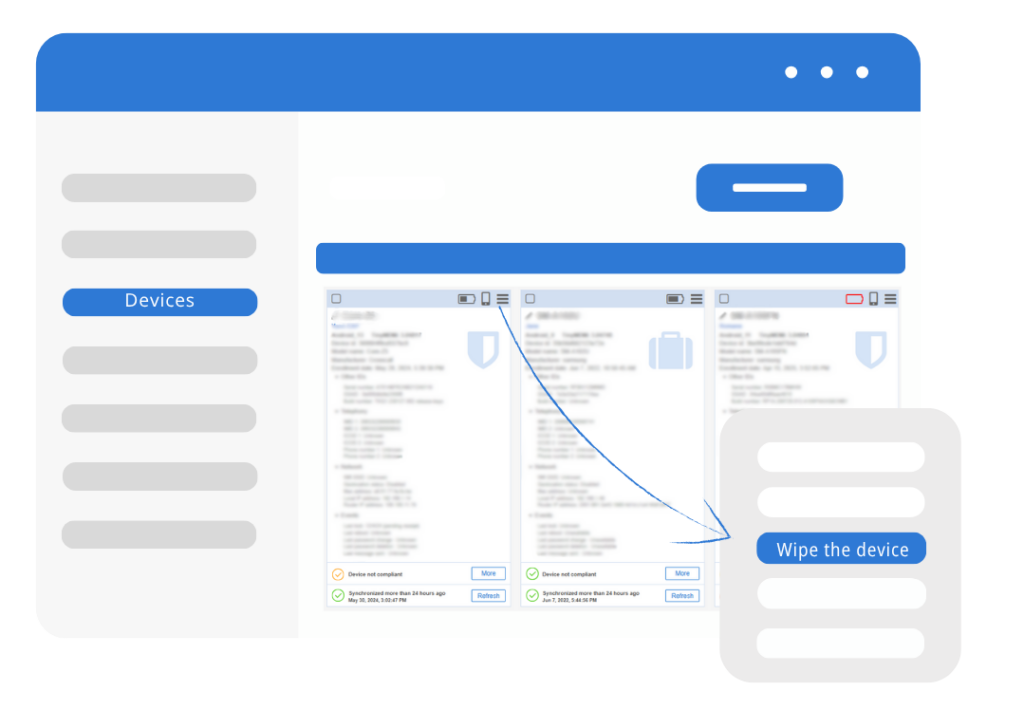
Secure professional data with remote wipe
Don’t put your confidential data at risk and choose to remotely wipe out the device if lost or stolen. In full management mode this feature will reset the device to factory settings. You can also define a maximum number of erroneous password entries before resetting the device, in accordance with ANSSI recommandations (National Cybersecurity Agency of France). In work profile mode, it will delete only the business data from the device.
Prevent device access with Google FRP
Secure your entire business mobile fleet by preventing any Factory Reset attempt from end-users: when enabled, this setting won’t be accessible and an admin code will be needed to reset the device.


Factory Reset Protection Management
With our Android devices management software, you can securely manage Factory Reset Protection on all devices from your admin dashboard: either disable it so that the Google account verification step can be skipped in case of a factory reset, or enable it and add a Google account to be taken into account on all devices. Learn more about it.
Compliance Management
Track the compliance of your devices against your defined policies in real time. If a device is not fully compliant with your organizational requirements, take immediate action to remedy it.

Mobile Security Management FAQ
With the widespread adoption of remote work and BYOD, mobile devices access confidential company data daily, making them a prime target for cyberattacks. Securing your fleet allows you to anticipate vulnerabilities and protect sensitive business data in the event a device is lost, stolen, or hacked.
From your TinyMDM console, a color-coded status system lets you easily check device compliance and synchronization. Green indicates a device is up-to-date and connected. Orange signals a connection delay or a pending installation, while red means the device is non-compliant or offline.
From your dashboard, you can track the different Android versions across your fleet and easily identify devices with pending updates. To prevent business disruption, TinyMDM allows you to manage Operating System (OS) updates using four different modes.
TinyMDM allows you to manage the password policy to secure access to devices and/or the work profile (WPCO/BYOD). You can require a specific lock type (PIN, pattern, or complex password), enforce a minimum length, disable biometrics (fingerprint, face unlock), and schedule password expiration.
To prevent users from erasing all data on their equipment, you can disable factory resets from the general controls in your policy. Once this restriction is enabled, employees will no longer be able to wipe their devices from their settings, any attempt will be blocked. To perform a legitimate reset, a specific temporary code, visible only from your admin console, will be required to authorize the action.