
How to upgrade the account used for business registration?
What is the upgrade and who is it for?
The Upgrade for free option offered by Google allows you to update the Google account used to register your enterprise, to align with the latest Google recommendations. This upgrade also provides access to Google domain verification if needed.
It is intended for businesses registered with a personal Google account (Gmail) that wish to transition to a professional Google account, as well as for businesses registered with a professional Google account that is no longer up to date with the latest Google recommendations.
For more information, see the Google documentation here.
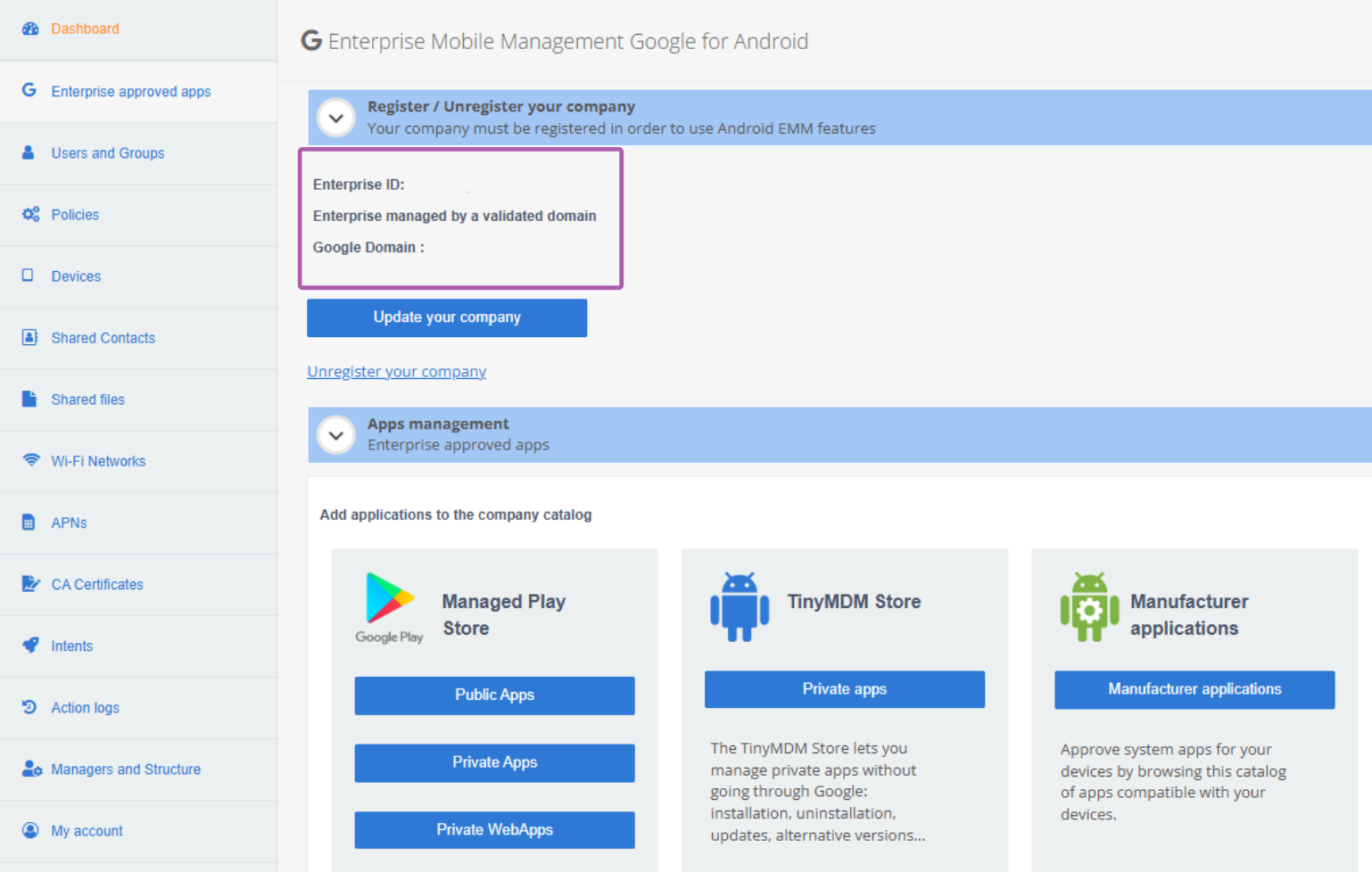
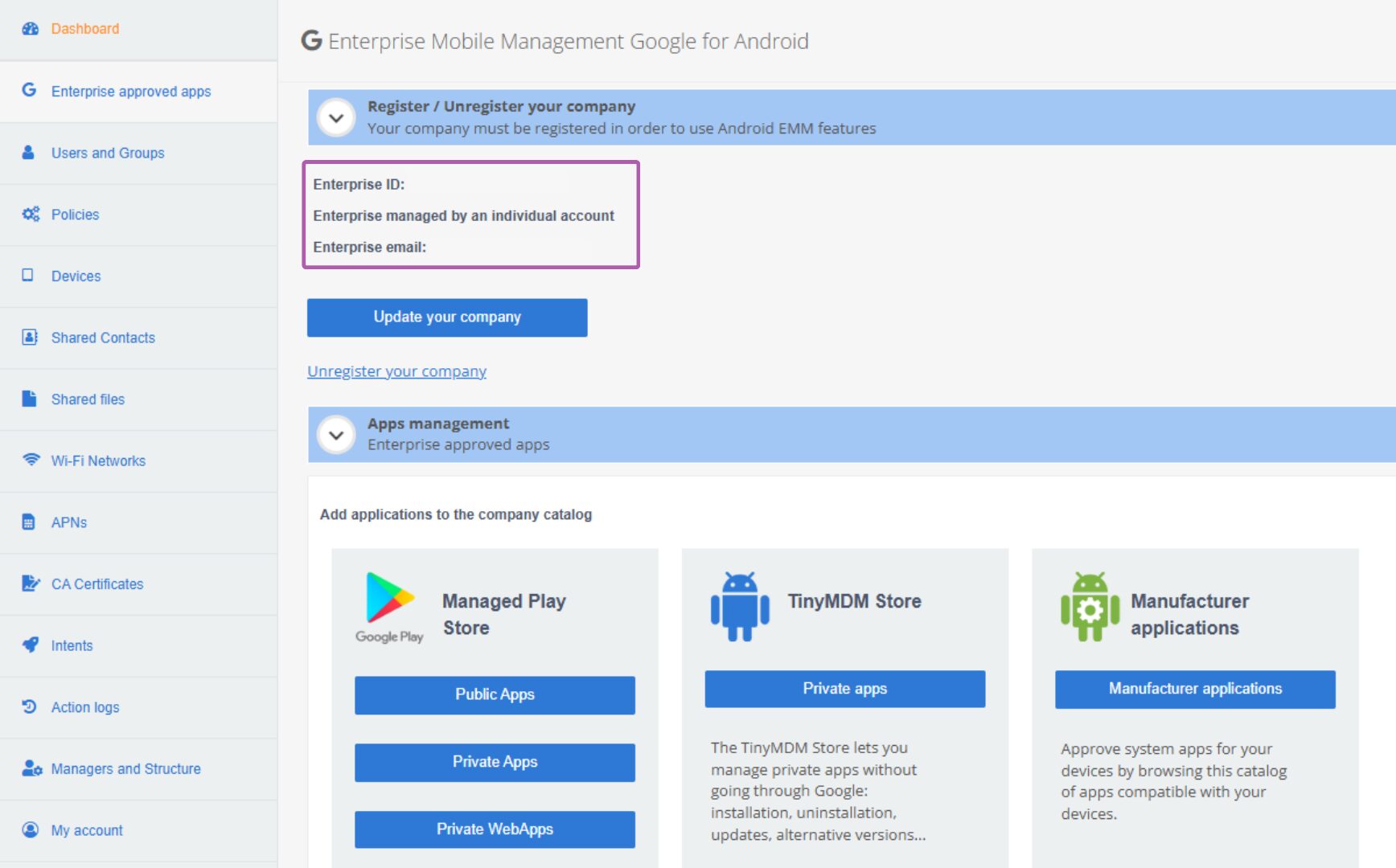
In the Enterprise-approved apps tab, under Register / Unregister your company, you can find all the information regarding the Google account you are using: your EMM Enterprise ID, your Google account type, and your login email address.
The steps of the upgrade
1. Open your admin console and go to the Enterprise Approved Apps tab.
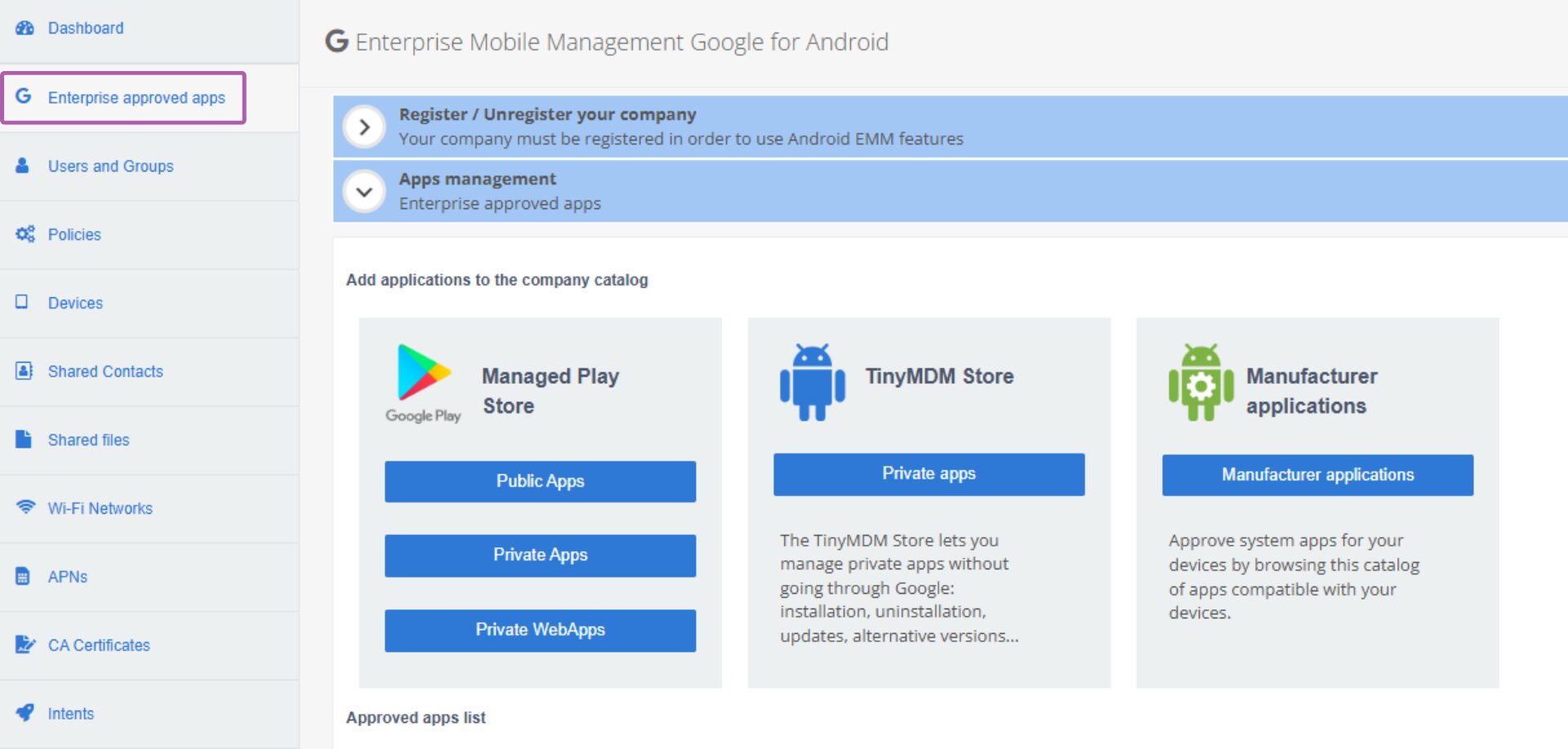
2. Under the Apps management subtab, click on Public apps.
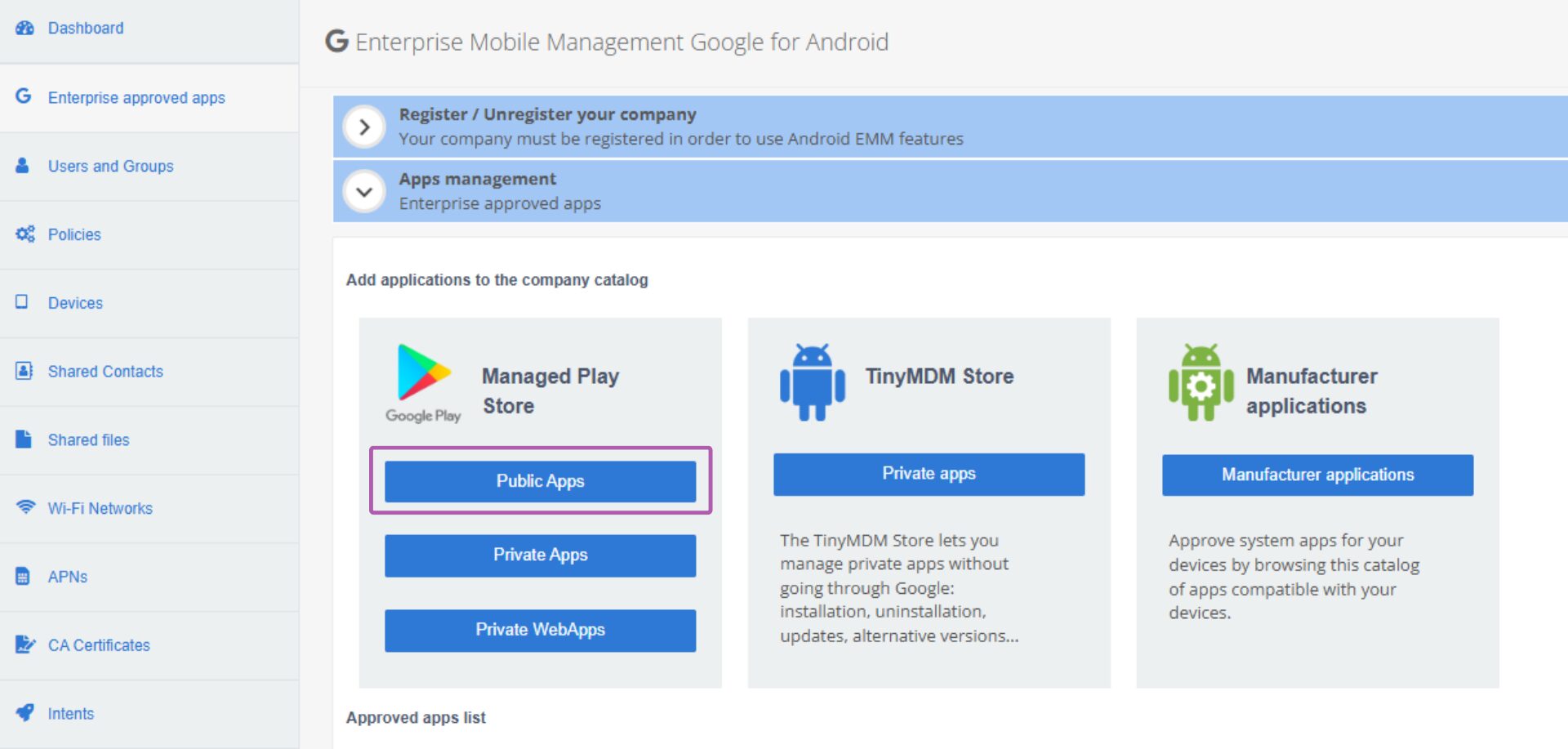
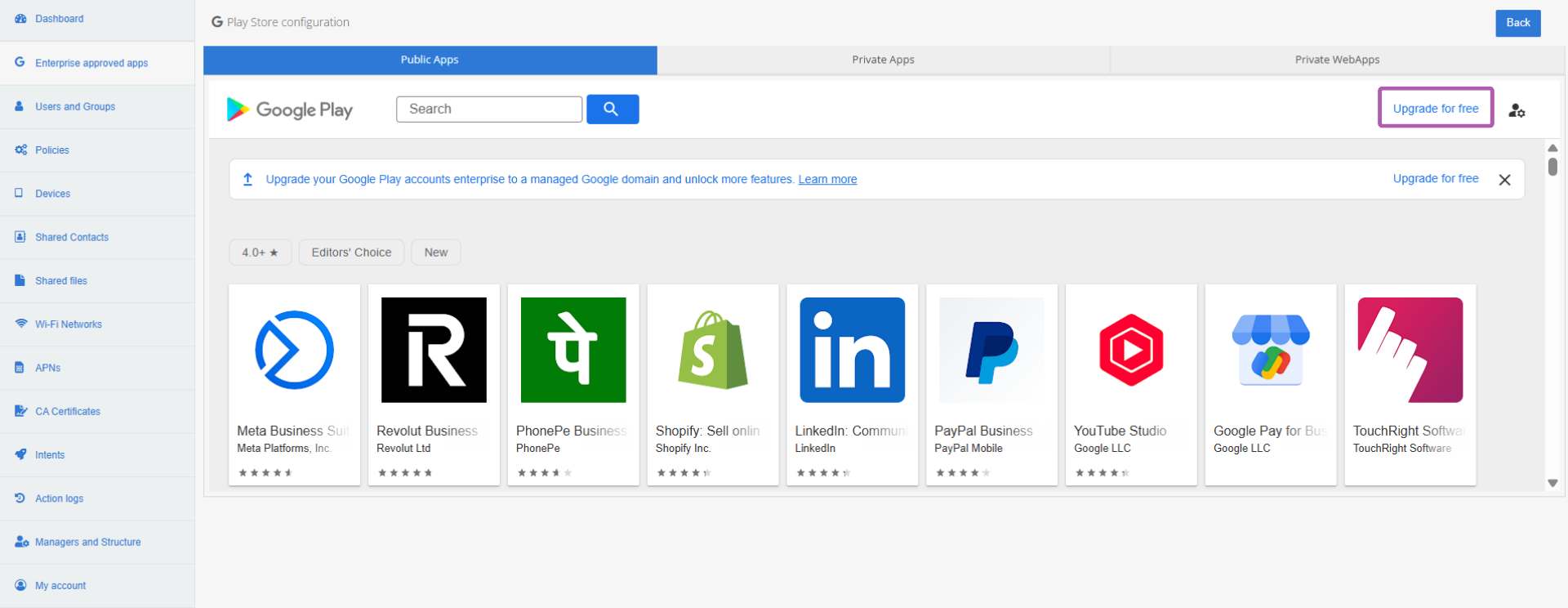
3. At the top right of the Play Store, click on Upgrade for free.
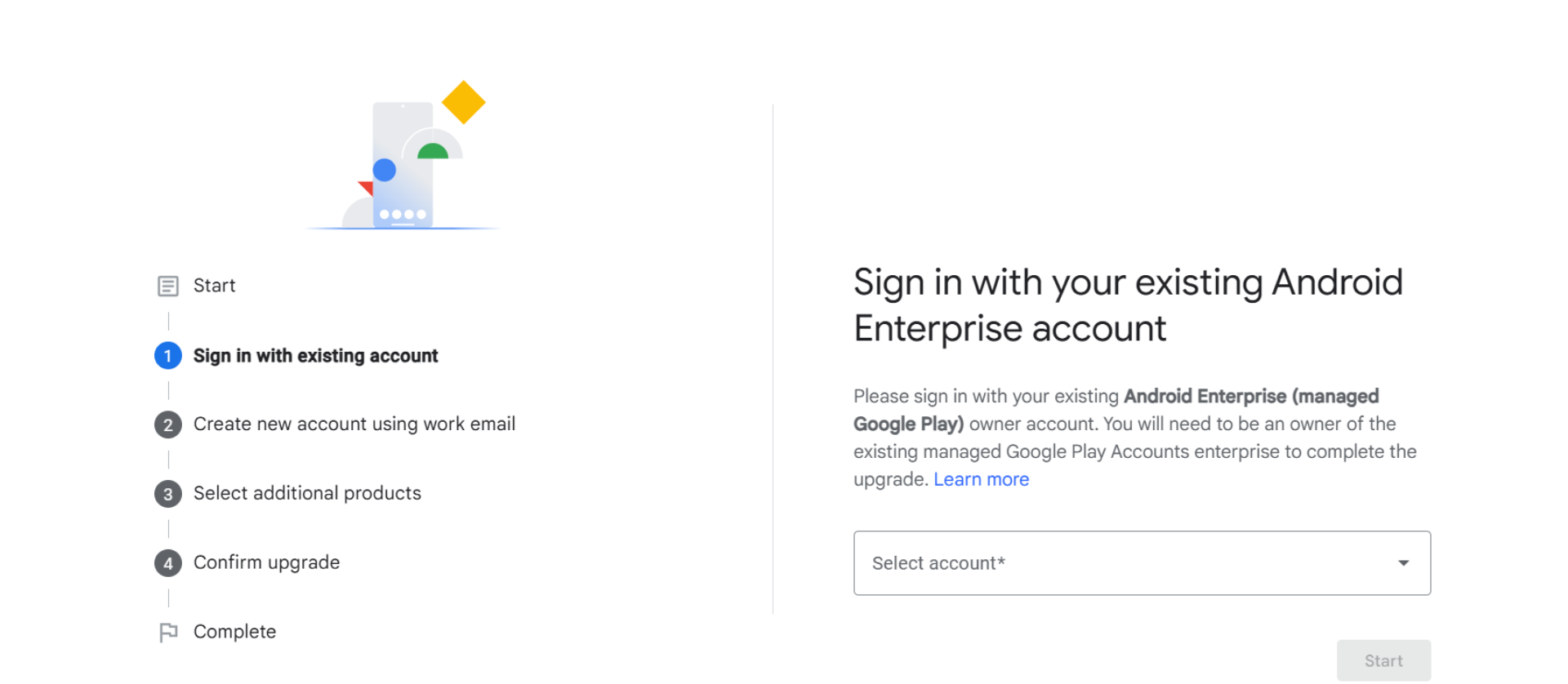
4. On the Android page that opens, enter the Google account associated with your TinyMDM admin console (visible in the Enterprise Approved apps tab, under the Register / Unregister your company subtab) and the associated password.
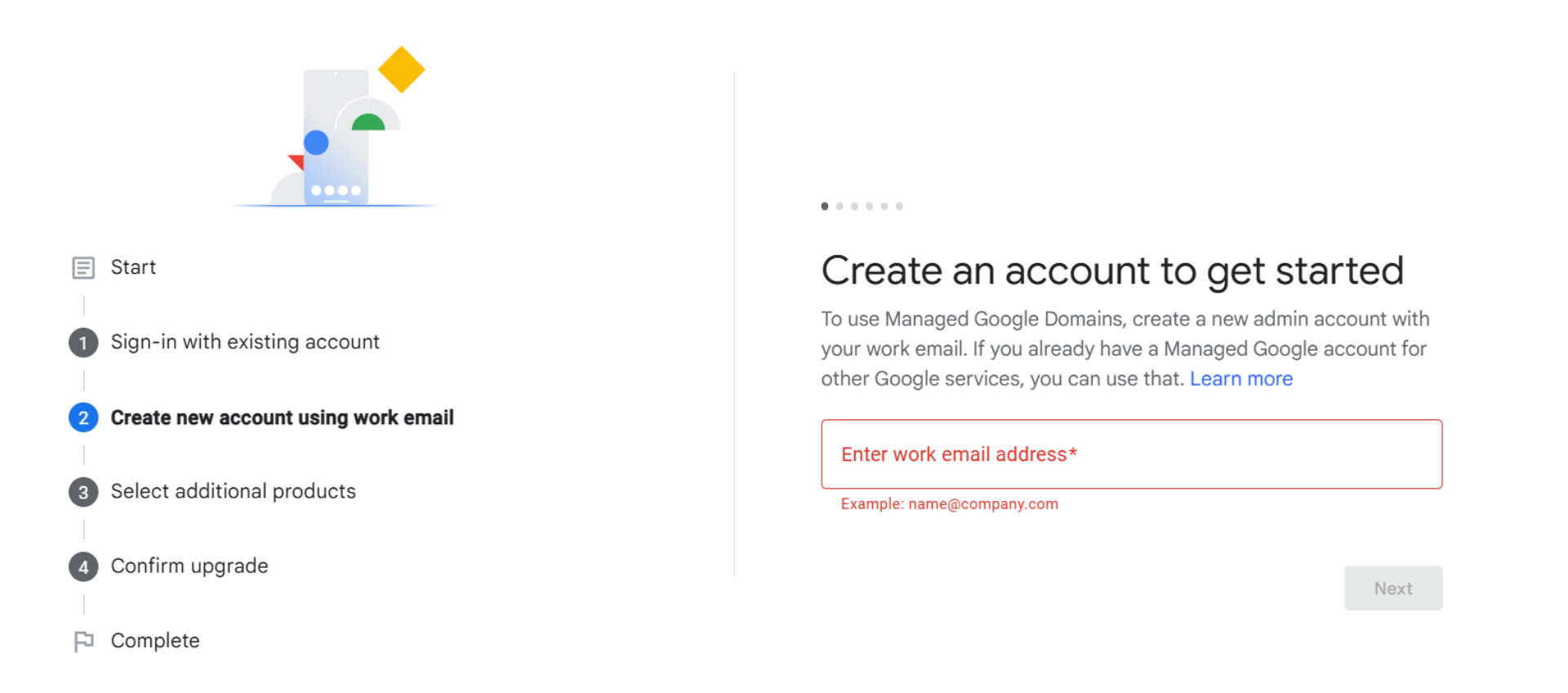
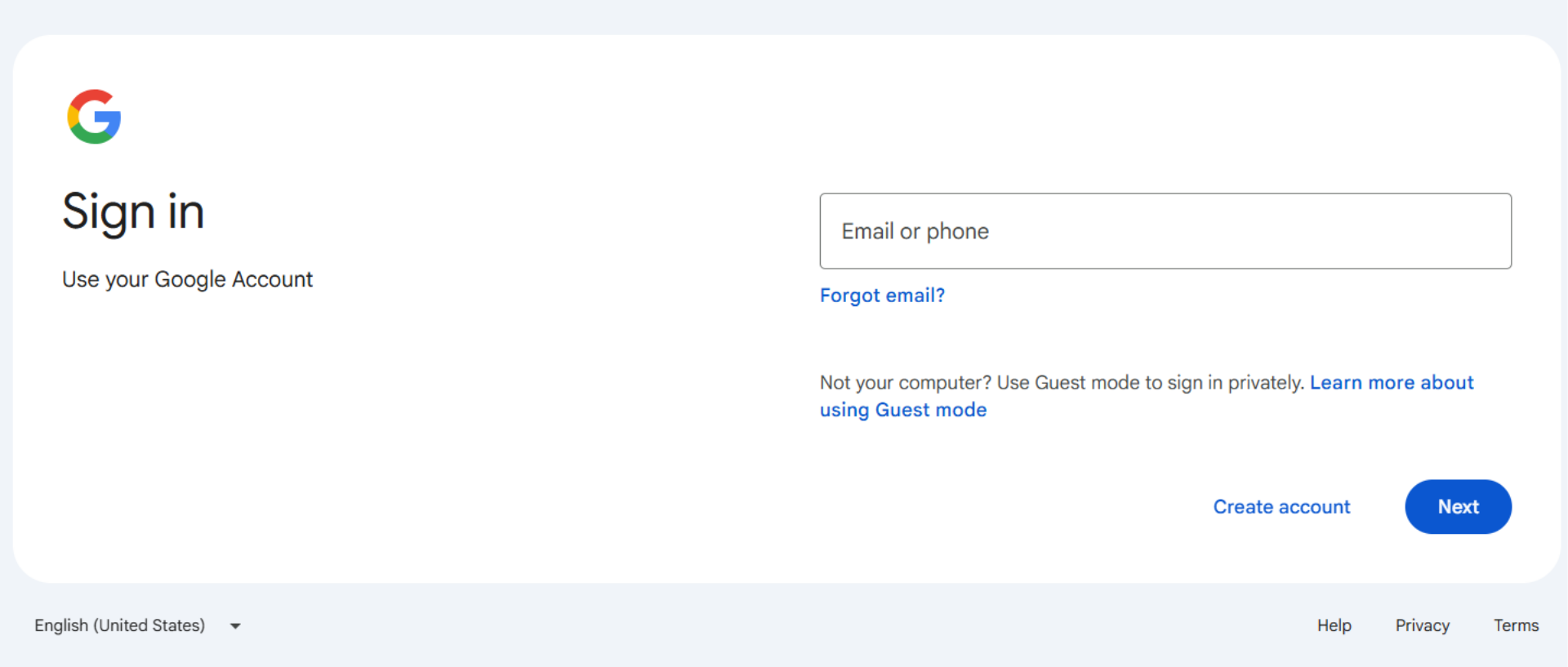
5. Next, enter the professional Google account you wish to use instead of your current Google account and the associated password. You may be asked to enable two-factor authentication on the account. If so, several options are available: Google Authenticator, SMS, or security key.
6. If needed, you can select additional products for your Google account. If you do not need any, you can skip this step.
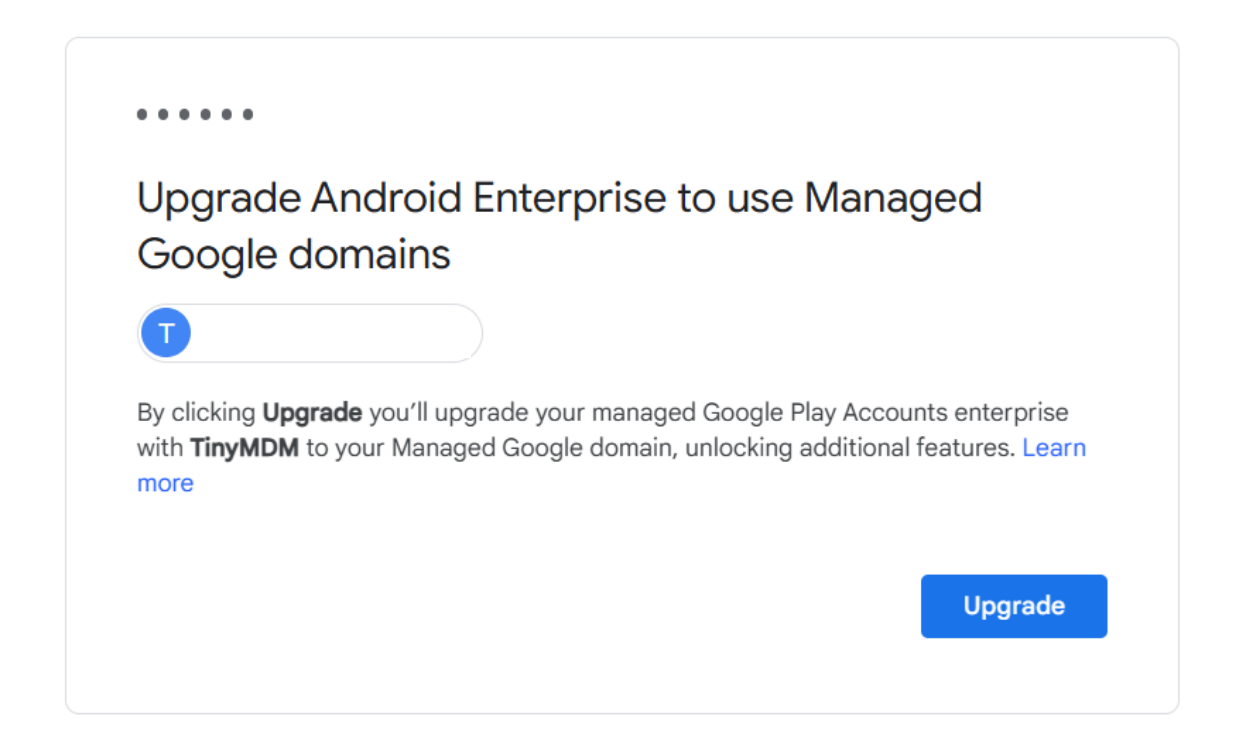
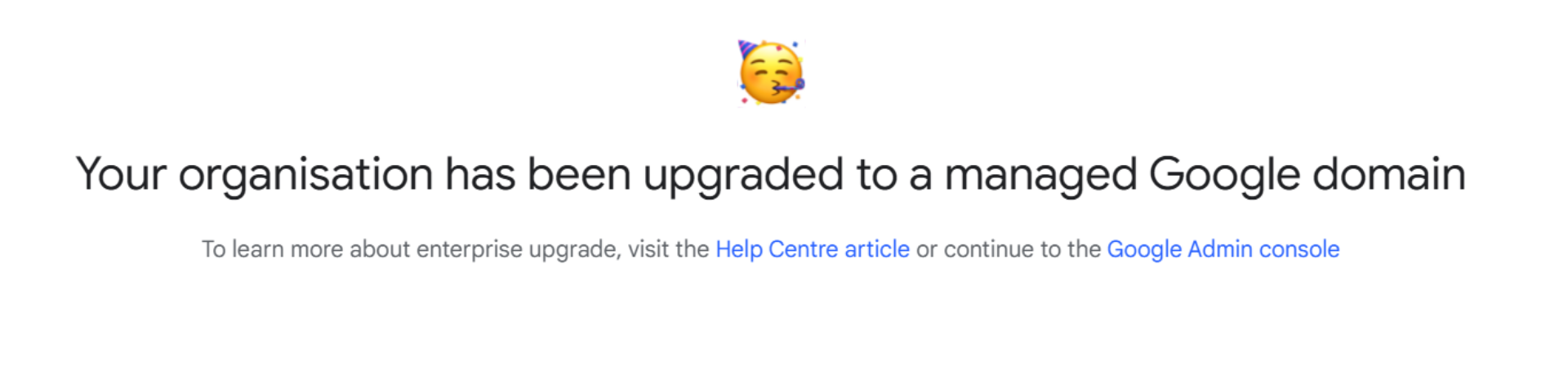
7. Click on Upgrade. The upgrade process is now complete.
8. You will then be able to see the new Google account used for your business registration in the Enterprise approved apps tab, under the Register / Unregister your company sub-tab.
Upgrading grants access to domain verification. To learn more about Google domain verification, click here.