
How to manage your passwords simply and securely?
For security reasons, it is not recommended to store your passwords directly in the password manager built into your mobile device’s browser. The recommended solution is to use an external password manager as described in this tutorial.
A. Configuration from the external password manager
We do not recommend any particular password manager, but we have tested the following applications and can confirm that they are compatible with the secure “Internet” browser:
- Bitwarden
- Nordpass
- Keeper
- Sticky Password
- LastPass
1. Installing the password manager and register
After choosing a password manager, you can follow this tutorial to approve and install the application on your desired devices.
Once the password manager application is installed on your device, you will need to register from that device. This process varies depending on the application and may involve verifying the email address selected as username.
2. Setting the password manager as the autofill application
Password managers usually offer to set them as the default autofill solution upon first launch. In this case, the application immediately redirects you to the correct menu in the settings. You then need to select it as your preferred password management and autofill service.
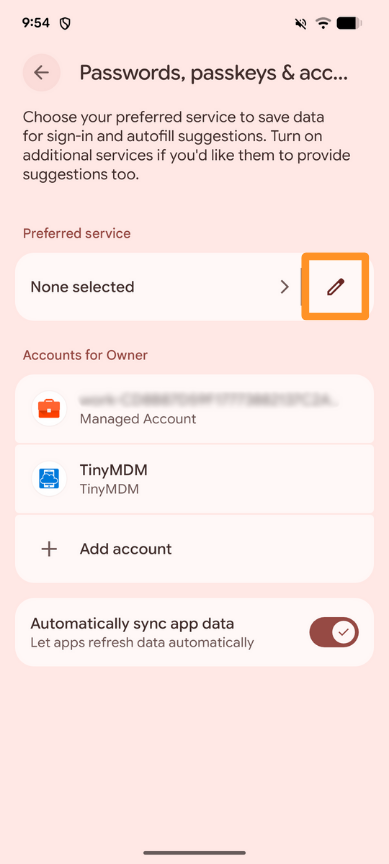
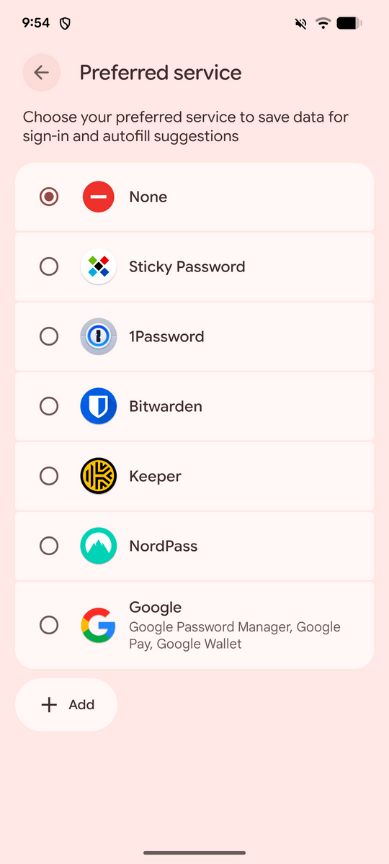
If needed, you can perform this step manually by going to the device settings and (depending on the device) by opening the Passwords, passkeys and accounts menu or by successively opening the Security and Privacy > More security settings > Passwords, passkeys and autofill menus.
B. Configuring the external password manager from the secure “Internet” browser
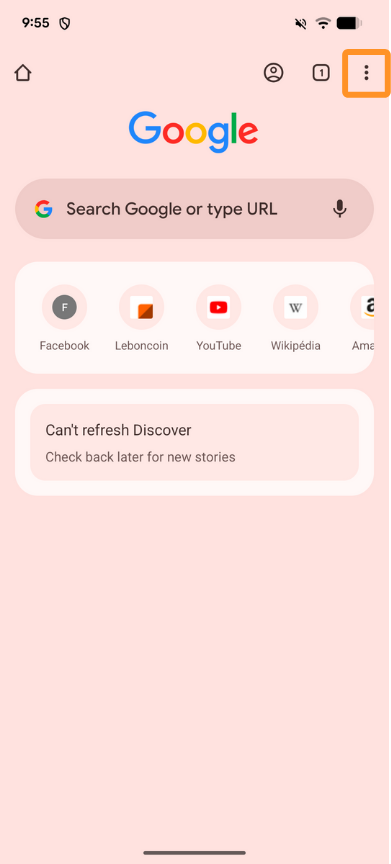
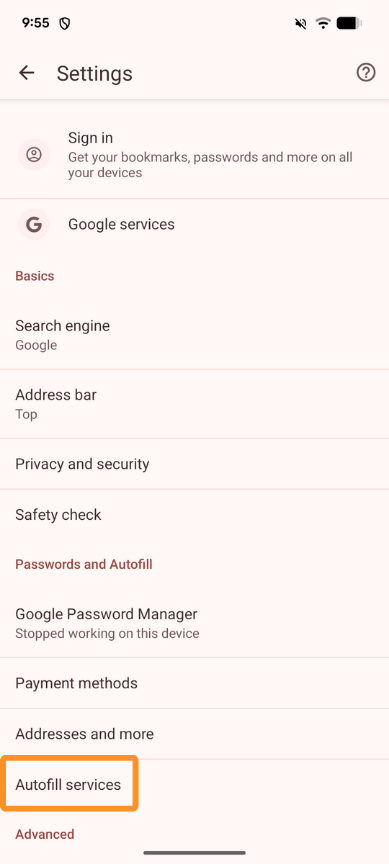
The final step is to open the Internet application (the TinyMDM internet browser) and then click on the three vertical dots in the top right corner to display the browser menu.
Next, select Settings and Autofill Services:
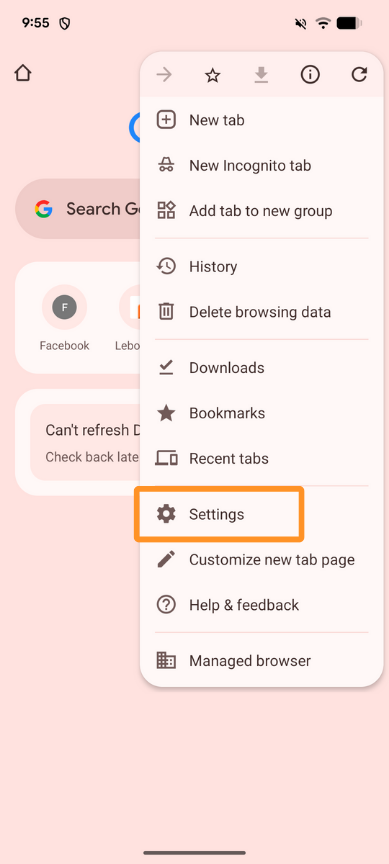
Check Autofill using another service:
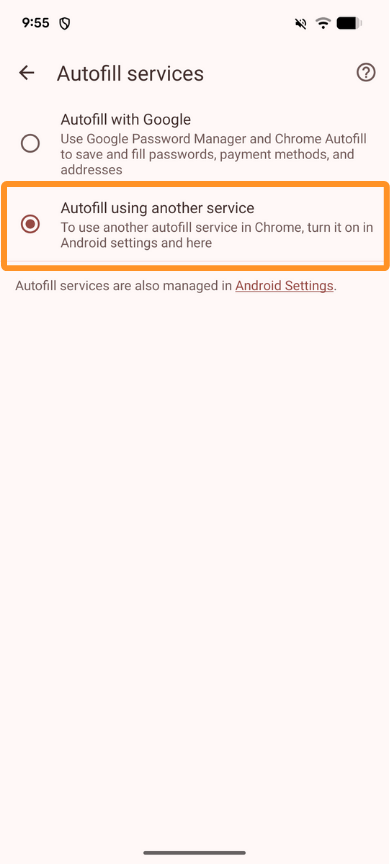
Your password manager is now configured and will offer to save or fill in your passwords as you type.