
How to manage permissions for applications?
You can manage apps permissions and set the default response for future runtime permission requests by applications (read contacts, access the camera, read the content).
A. To manage permissions at a global level:
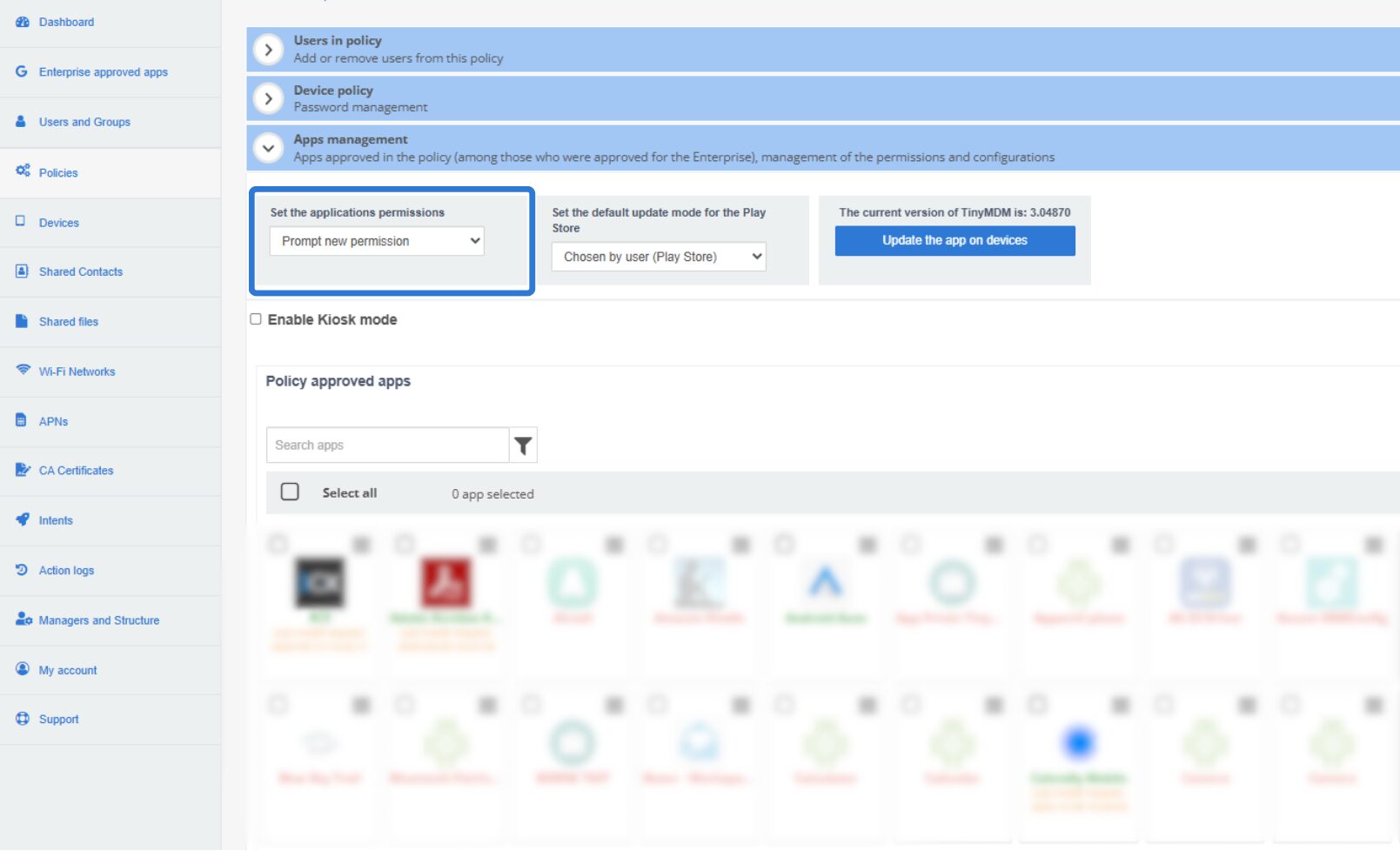
You can manage your application permissions at a global level to ensure that, by default, permissions are accepted, denied, or managed by the users. To do this:
- Login to your TinyMDM admin console and go the Policies tab.
- Click on the policy you want to edit, or create a new one.
- Open the Apps management subtab to access the Set the applications permissions by default. You can choose between:
- Prompt new permission: each time the user opens a new application for the first time, it will ask them which permissions they want to grant or deny.
- Automatically granted: all permissions will be granted by default.
- Automatically granted except geolocation: all permissions will be granted except geolocation.
- Automatically denied: all permissions will be denied by default.
B. To manage permissions per application:
You can also manage permissions per application. In order to do it:
1. Login to your TinyMDM admin console and go the Policies tab.
2. Click on the policy you want to edit, or create a new one.
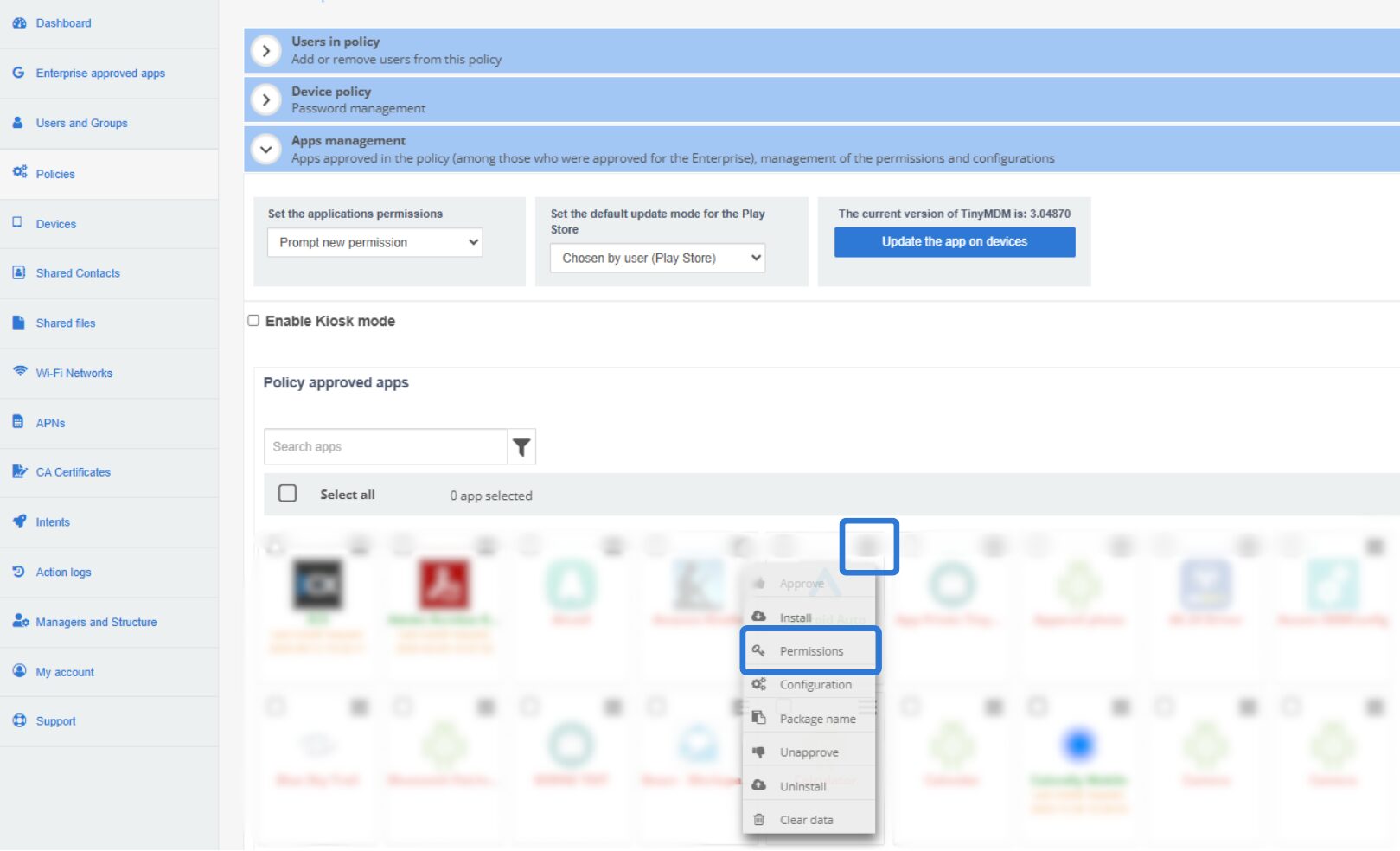
3. Open the Apps management subtab and under Policy approved apps, click on the menu of your app and on Permissions:
4. A pop-up window will then open, displaying all available permissions for this application. For each permission, you can choose to grant it, deny it, or let the user decide:
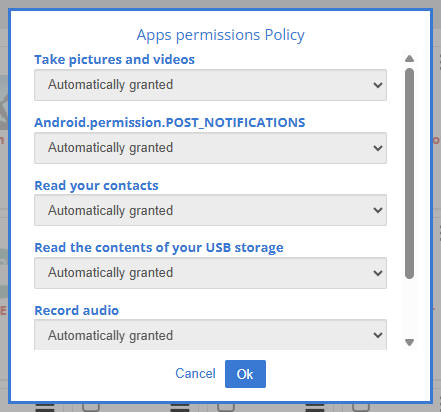
Please note that if you select Automatically deny for a specific application, the permission will be denied even if the default response for all applications is set to Automatically granted.