
How does TinyMDM’s two-factor authentication work?
TinyMDM’s two-factor authentication is a security method that requires two distinct forms of identification to access your console. The primary type of identification remains your email and password (or your SSO or SAML connection), but it is reinforced by a second authentication using the Google Authenticator app.
A. Enable two-factor authentication
A.1. On your administrator account
First activation
Prerequisite: download the Google Authenticator app on your smartphone.
1.To enable two-factor authentication from the console, go to the My Account tab, then click on Manage Login Details in the Admin account block.
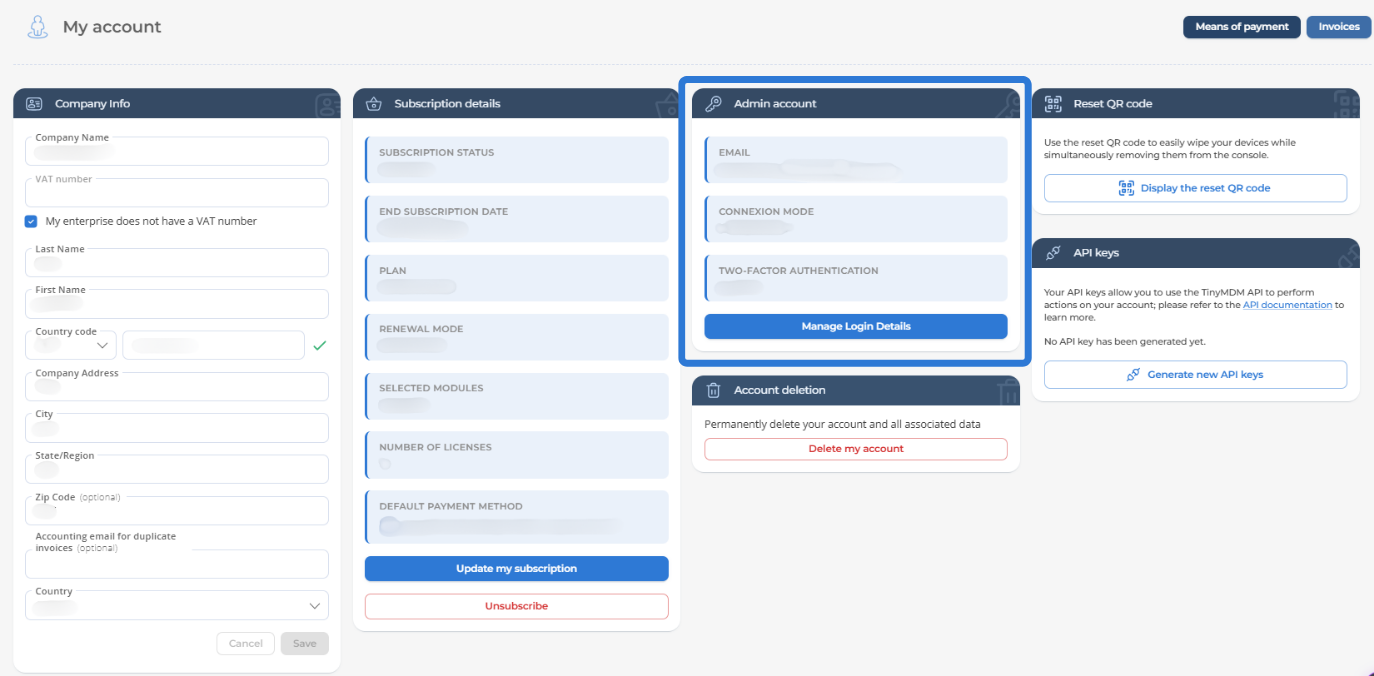
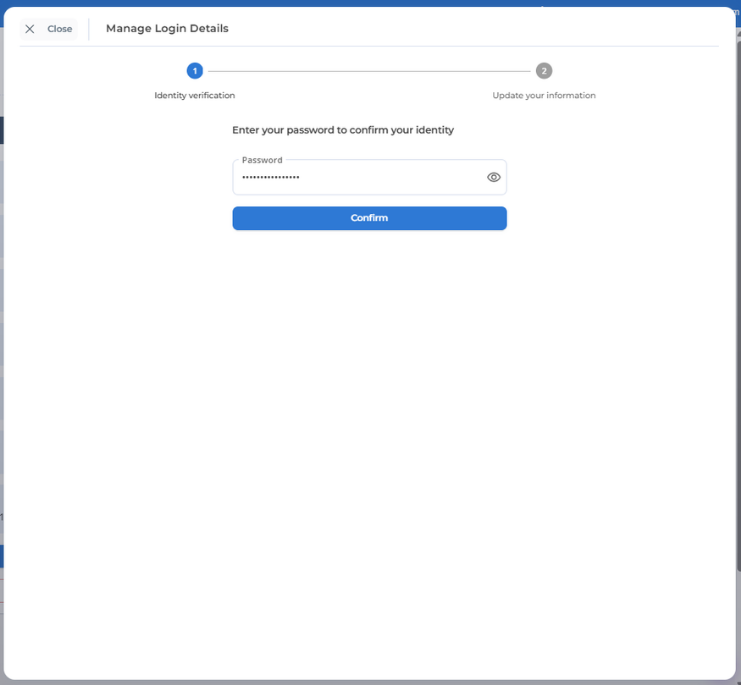
2. Next, enter your password to authenticate.
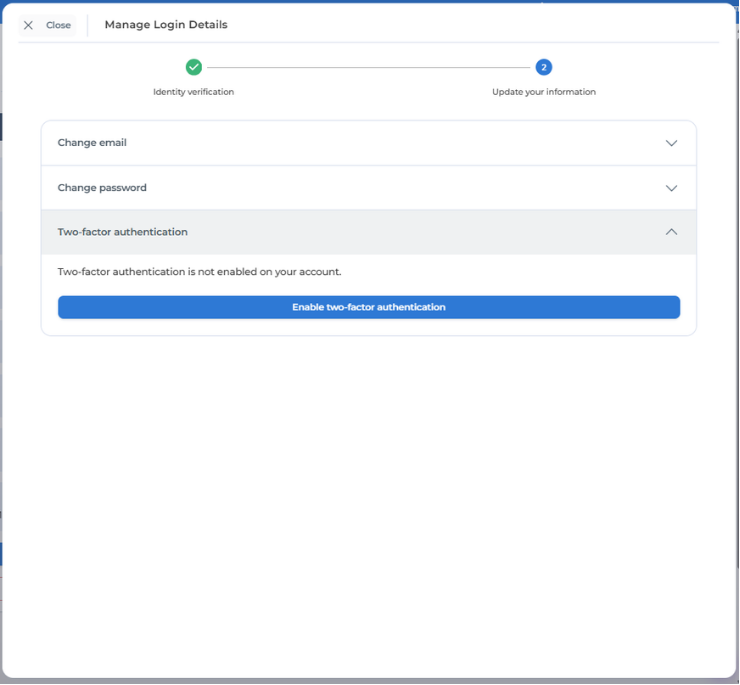
3. Then, click on Enable two-factor authentication.
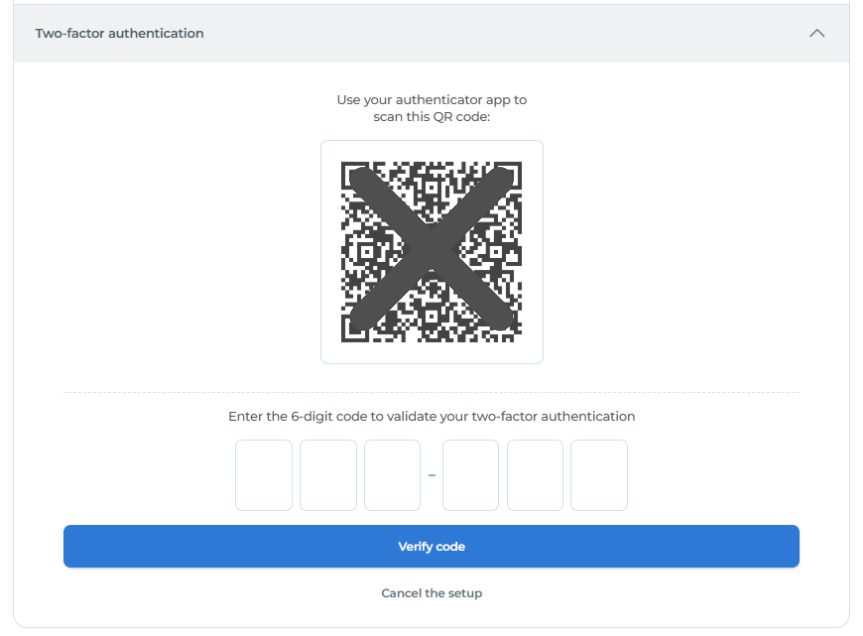
4. On your smartphone, open the Google Authenticator app and scan the QR code displayed on your screen. Then, enter the 6-digit code to validate your two-factor authentication and check Verify the code.
5. Finally, choose your secret question and enter the associated answer to validate your two-factor authentication.
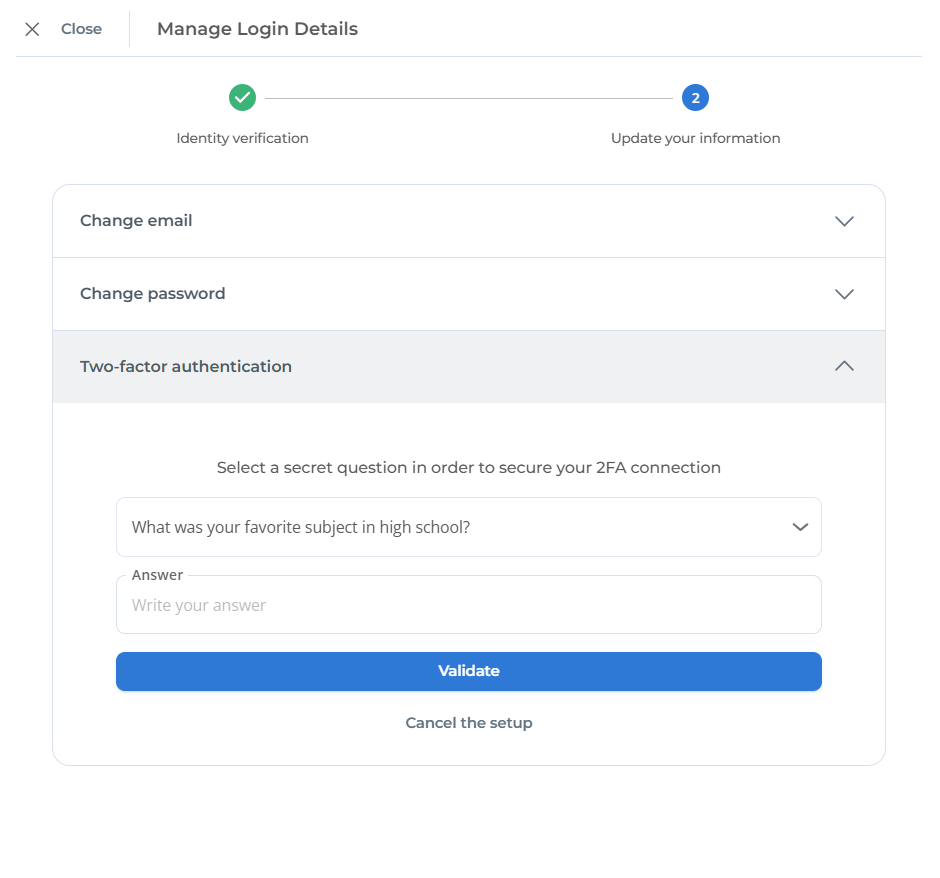
Two-factor authentication is now enabled on your TinyMDM account and will be required upon your next login.
For all future logins
During your future logins to this TinyMDM account, you will need to enter your email, your password, and then enter the 6-digit code displayed on the Google Authenticator app on your smartphone. This code expires every 30 seconds.
A.2. On a manager account
First activation
Prerequisite: your managers must download the Google Authenticator on their smartphones.
1. To enable two-factor authentication for the login of one or all of your managers, go to the Managers and Structure tab in your administration console.
2. Then select the desired manager and click on Enable two-factor authentication.
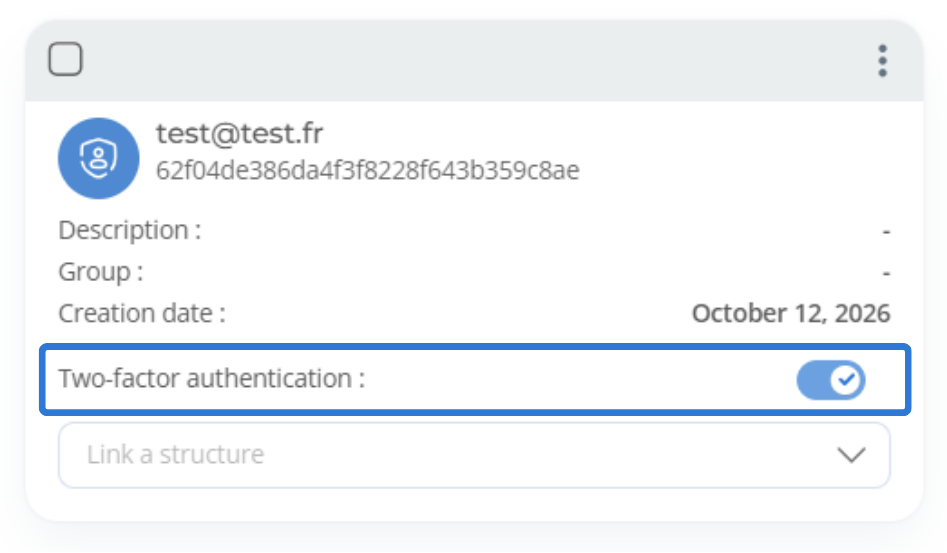
3. During their next login to this TinyMDM account, your managers will have to enter their email and password, which will trigger a pop-up to configure their two-factor authentication.
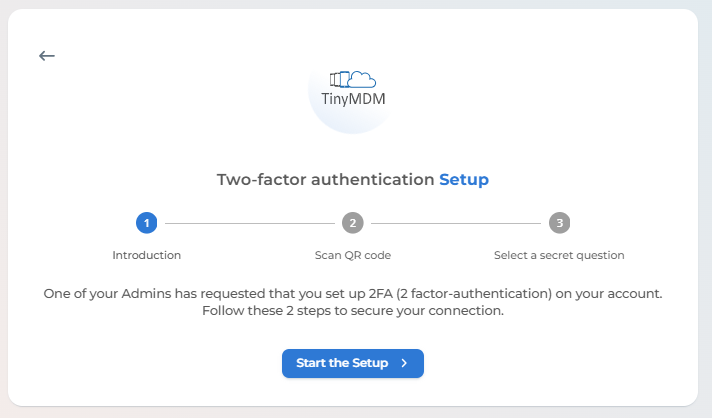
4. They will then need to install Google Authenticator if they haven’t already, and scan the QR code that will appear on the screen (step 2).
5. They can then select and answer their secret question to validate their two-factor authentication (step 3).
For all future logins
During their future logins to this TinyMDM account, your managers will need to enter their email, their password, and then enter the 6-digit code displayed on the Google Authenticator app on their smartphone. This code expires every 30 seconds.
Information regarding the deactivation of two-factor authentication:
- If you wish to disable two-factor authentication on your administrator account, simply go back to the My Account tab and to the Admin account block to disable it. You will need to provide your secret answer to validate the action.
- If you wish to disable two-factor authentication for one of your managers, simply go to the Managers and Structure tab and disable it for the manager of your choice.
B. What happens if I forget my password?
If you have forgotten your password, you must click on “Forgot password?“. Then, simply request a password reset by entering your email address. An email will then be sent to you containing a link that will allow you to change your password.

C. What happens if I forget my password?
If you have forgotten your password, you must click on “Forgot password?” . Then, you just need to request a password change by entering your email address. An email will then be sent to you with a link to change your password.
D. What happens if I don’t have access to my code?
D.1. As a main administrator
If you do not have access to your code as a main administrator, you will need to:
1. Enter your email and password (or log in via Google SSO or SAML).
2. Then, at the two-factor authentication step, click on Unable to verify your 2FA?.
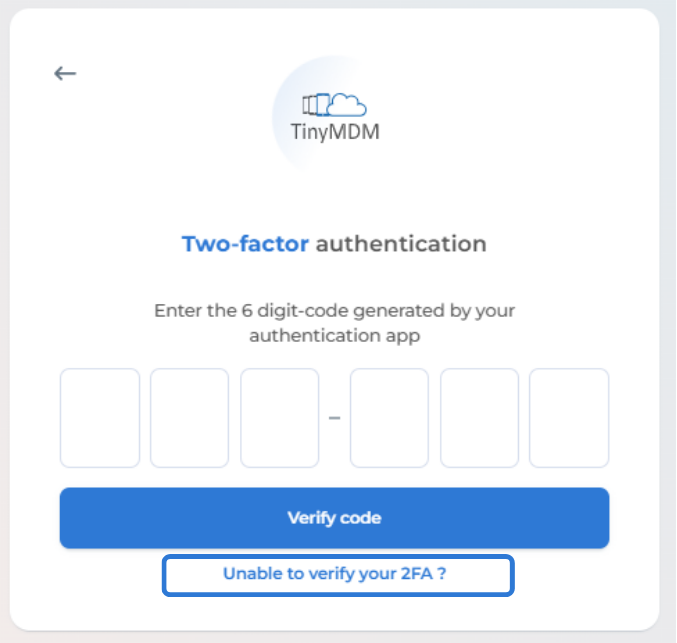
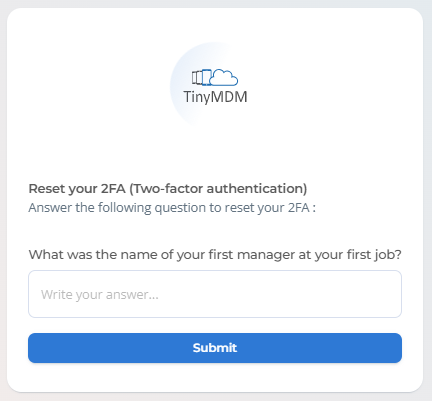
3. An email will then be sent to you to reset your two-factor authentication. Click on the associated link and enter the answer to your secret question to confirm the reset of your two-factor authentication.
D.2. As a manager
If you do not have access to your code as a manager, you will need to contact the main administrator of the account. They will need to disable and then re-enable two-factor authentication for your manager account.